
Two-Factor Sign-In
Add a second step to signing in: a 6-digit code by email, or by text if you prefer. Turn it on for yourself, or require it of everyone.
A password is one secret, and it leaks: reused on another site, guessed, phished, or read off a sticky note by whoever walks past the desk. Two-factor sign-in adds a second step that lives somewhere else, so knowing the password is no longer enough.
Manuall sends a 6-digit code. It goes to your email by default, or to your phone if you set that up. This is often written 2FA, or multi-factor authentication.
Turning it on for yourself
Open Profile, find Two-Factor Sign-In, and tap Turn it on.
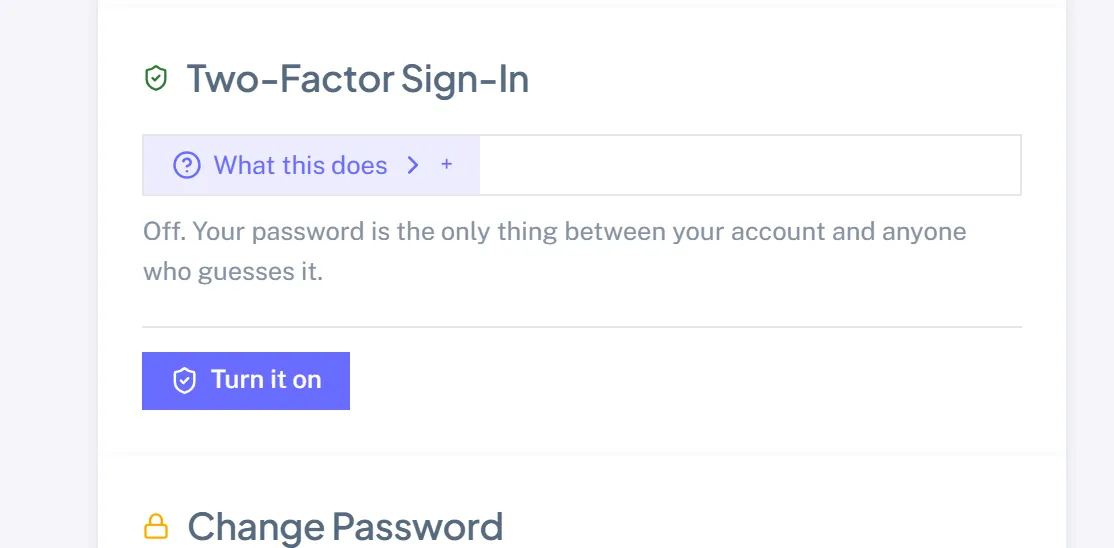
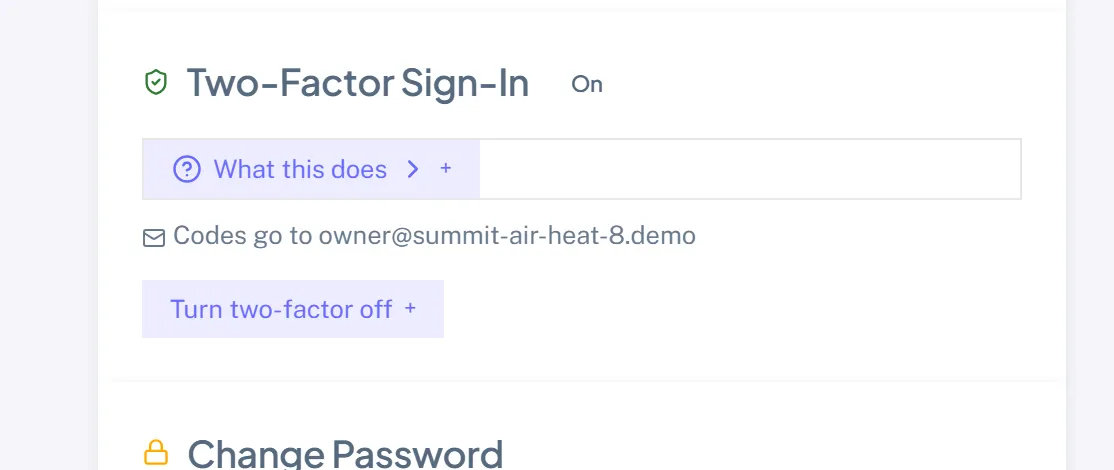
That is the whole setup. There is nothing to install and no code to scan, because the code goes to the email address you already sign in with. Next time you sign in, you enter your password, then a code.
Getting the code by text instead
If your platform has text messaging switched on, a Prefer a text? field appears once two-factor is on.
- Enter your mobile number.
- We text a code to it.
- Enter that code to confirm.
The number does not take effect until the code comes back. A typo cannot leave you waiting for a code at a handset nobody holds.
This is your number and only you can set it. It is deliberately not read from your team profile: that field can be edited by anyone with permission to manage the team, and a second factor that a colleague can point elsewhere is not a second factor.
If you do not see the option, your platform has not switched on text messaging yet. Email still works.
"Do not ask again on this device"
The code screen has a checkbox that remembers the browser you are on for 7 days. Tick it on your own laptop and you will not be asked again for a week. Leave it unticked on a shared or borrowed machine.
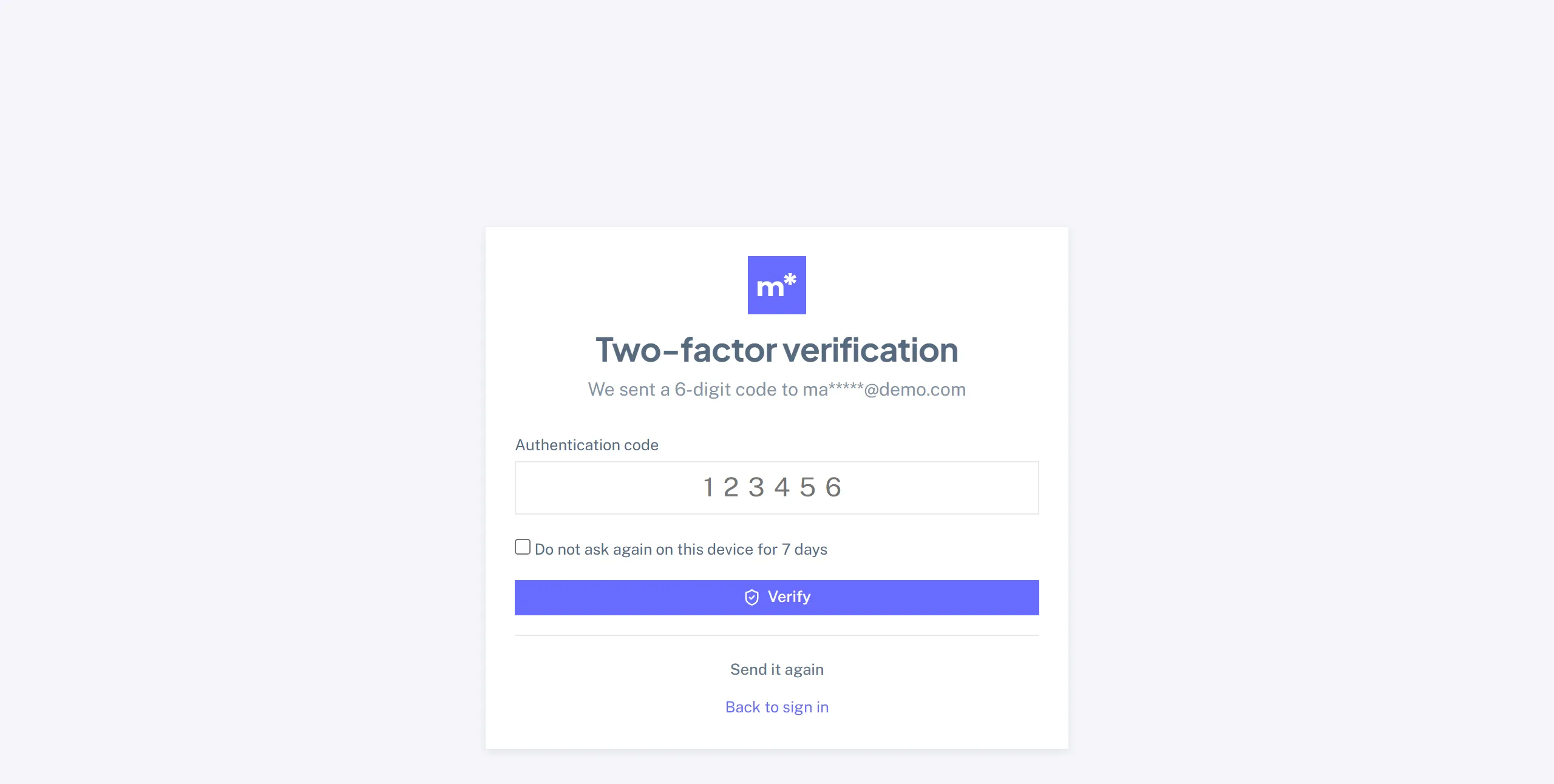
Changing your password cancels every remembered device at once, everywhere. So does an administrator forcing you out. That is the point: if you think somebody got in, change your password and every browser they marked as trusted stops being trusted.
Requiring it for everyone
Open Settings, then the Users tab, and tick Require two-factor sign-in for everyone.
This is safe to switch on without warning anybody. Nobody has to set anything up first, because email needs no setup: a user who has done nothing simply gets a code at the address they already sign in with. Nobody is locked out waiting to enrol.
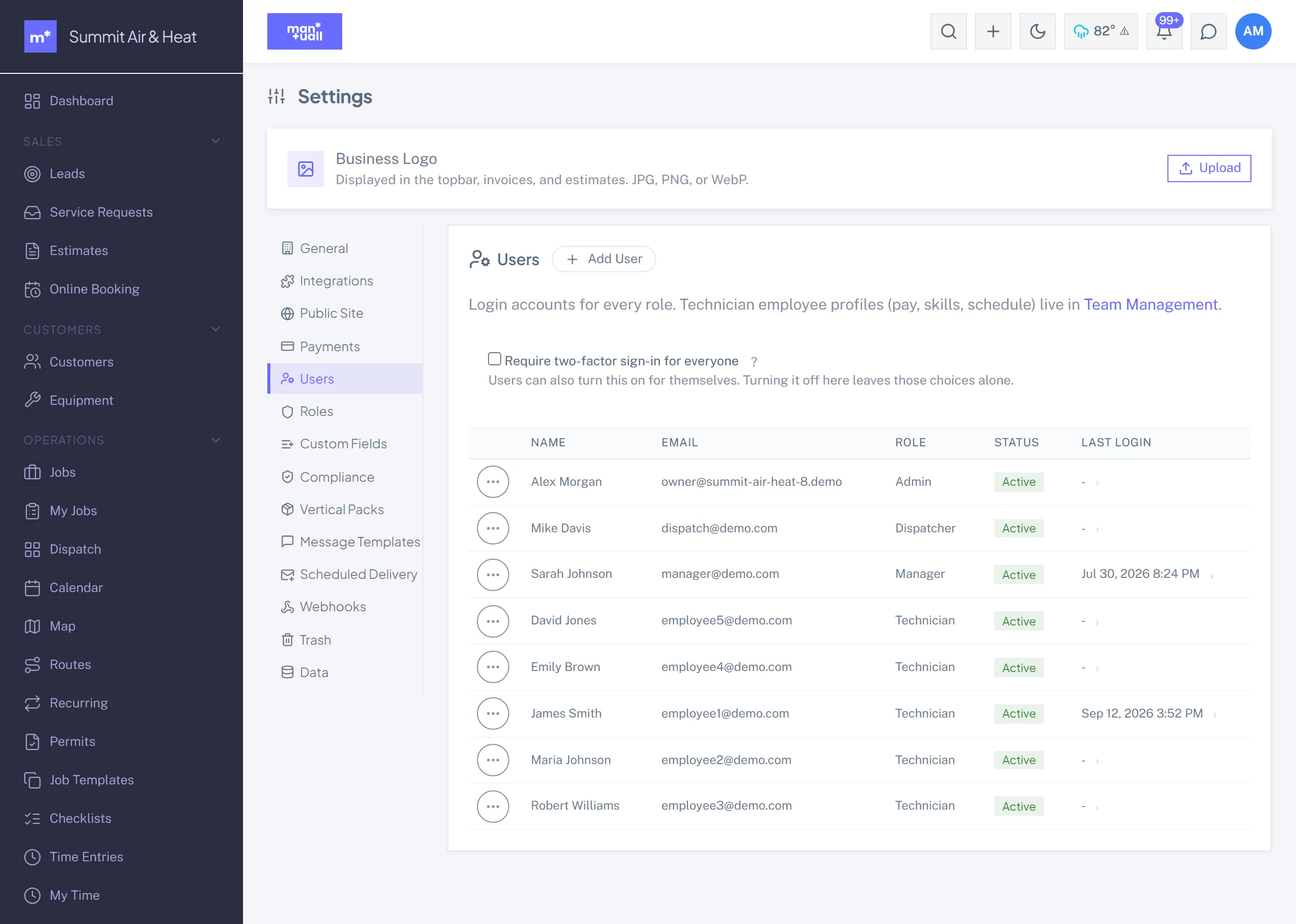
Turning it back off leaves individual choices alone. Anyone who turned it on for themselves keeps it.
When somebody cannot get their code
Lost phone, changed number, inbox they cannot reach. An administrator fixes it from Settings, Users: open the row's menu and choose Turn off two-factor.
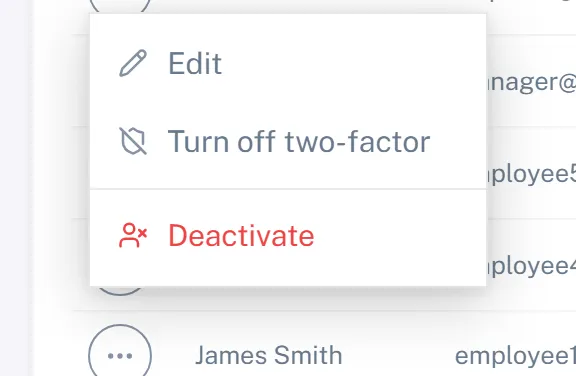
That action only ever turns it off. There is no way for an administrator to set another person's phone number or channel, which is what stops "help me get back in" from becoming a way to redirect somebody else's second factor. Once the user can receive codes again, they turn it back on themselves.
What the code does and does not do
The code expires after 10 minutes, works once, and dies after five wrong tries. Asking for a new one resets that, so a few fat-fingered attempts do not strand you.
It is not a replacement for a good password, and it does not protect a session already signed in on an unlocked screen. It protects the moment of signing in, which is where stolen passwords get used.
Platform administrators
If you sign in with the system company code, your second factor is an authenticator app rather than an emailed code, set up at Two-Factor Authentication in the platform admin area. That is a stronger factor, and appropriate for an account that can reach every business on the platform.
Common questions
Does every user have to use the same channel? No. It is per person. One tech texts, everybody else emails.
Will a tech in the field get stuck without signal? They need signal to receive the code, the same as they need it to reach Manuall at all. Once signed in, the 12-hour session and the offline queue work as they always did.
Does this cost anything? No.
What if our email is down? Then codes do not arrive, and an administrator can turn two-factor off for whoever is stuck. Worth knowing before you require it across a shop that runs its own mail server.