
Invoicing & Payments
Send an invoice, collect online via Stripe, handle partial payments and credit memos.
An invoice is the customer's bill: who owes what, against which job, due when. Payments are the money in. This page covers the whole money flow: generation, sending, partial payments, Stripe collection, refunds, and credit memos.
The invoice lifecycle
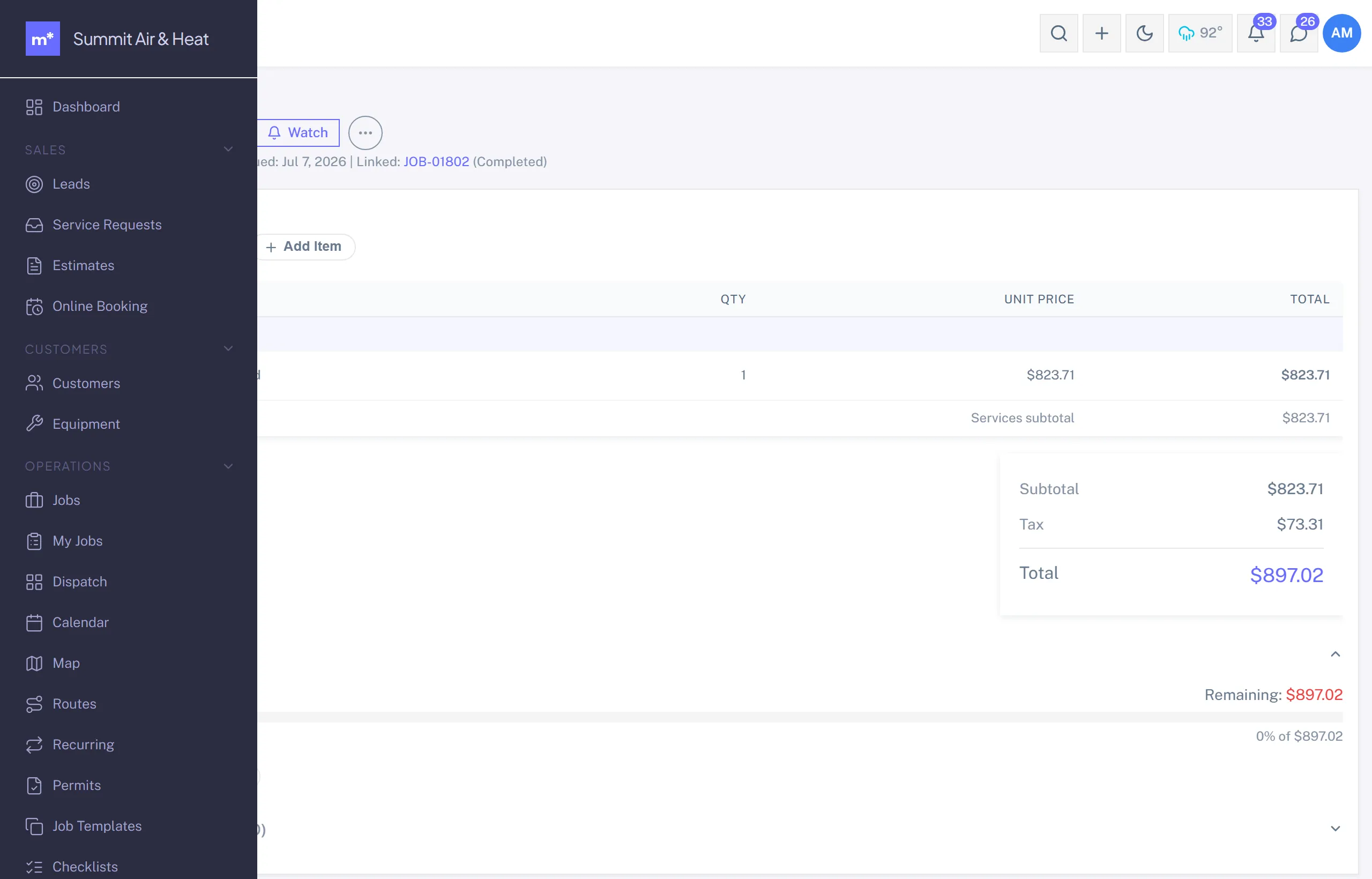
The normal path is Draft (being prepared) -> Sent (emailed, portal link live) -> Partial (at least one payment, balance remaining) -> Paid (balance zero). An unpaid invoice past its due date goes Overdue. For the ones that go bad, there are the collections states: Disputed, Collections, and Written Off.
Where invoices come from
| Source | What triggers it |
|---|---|
| Job completion | From a completed job, Generate Invoice builds a Draft from the work done. |
| Estimate deposit approval | Customer hits "Approve & Pay Deposit", a deposit invoice is minted, Stripe Checkout opens. |
| Manual create | Sidebar -> Invoices -> + New. One-offs, retainers, custom billing. |
| Recurring schedule | A Recurring Invoice fires on its cadence. |
| Consolidated | Customer detail -> Jobs tab -> bill several jobs as one invoice. |
Building a draft
- Pick the customer.
- Pick the job(s), or leave it standalone.
- Line items: from the job, the Price Book, or custom.
- Tax rate (defaults to your first active rate).
- Due date (defaults to Net 30).
- Optional message.
- Save, then Send when ready.
Customer payment options
| Method | What happens | Settlement |
|---|---|---|
| Stripe Checkout (portal) | Customer clicks Pay, enters a card, Stripe processes and confirms back to Manuall. | Funds land in your own Stripe balance. Stripe pays you on your account's schedule (T+2 to T+7 in the US). |
| Apple Pay / Google Pay / Link | Stripe Checkout auto-enables every method your connected account supports. | Same as card. |
| Bank debit (ACH) via the portal | Same Checkout; the customer picks Bank. The invoice shows "bank payment in progress" until it clears, usually within 4 business days, then flips to Paid on its own. If the bank returns it, you're notified and the customer is emailed. | Same as card, at bank rates. |
| Check / cash / bank transfer | Log it: Invoice detail -> + Payment. | Manuall records it; your bank records the cash. |
| External reader (Square, etc.) | Record manually after it settles. | Manual. |
Stripe Checkout under the hood
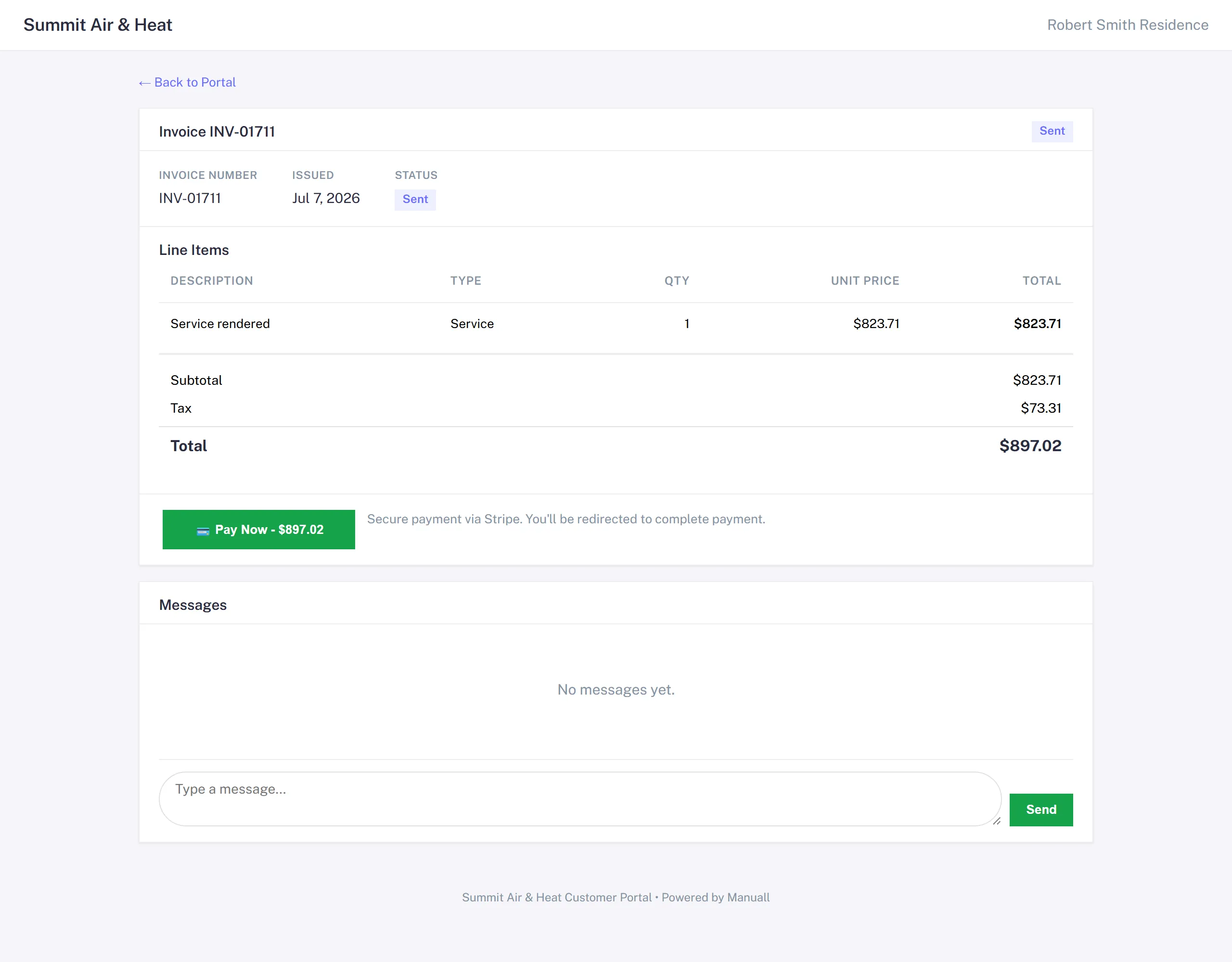
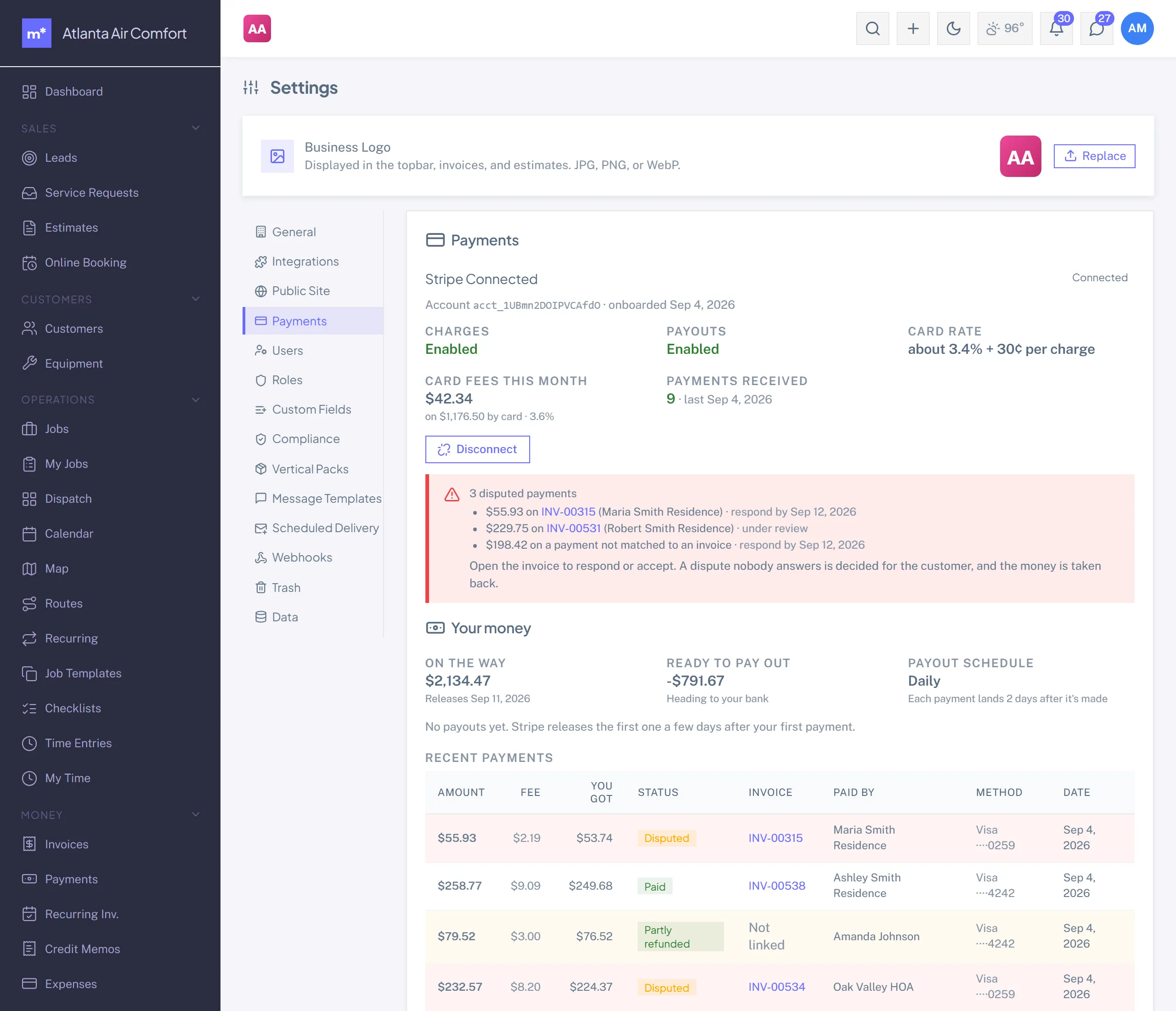
The customer clicks Pay in the portal, Manuall opens a Checkout session on your connected Stripe account (Settings -> Payments), they pay on Stripe's hosted page, and the charge lands on your account. Stripe notifies Manuall, which records the payment and marks the invoice Paid. Card payments run about 3.4% per transaction, all-in. The customer's card statement reads your Stripe name plus the invoice number ("ACME HVAC* INV-00538"), so the charge is recognisable weeks later. A keep this card on file box on Pay Now enrolls the customer in auto-pay as they pay.
Stripe Connect (your own Stripe account).
Each shop connects its own Stripe account through Settings -> Payments in about three minutes (Stripe runs the hosted onboarding). Charges land on your account and Stripe pays you directly on your own schedule. Manuall never holds your funds.
Partial payments
Common on big commercial invoices: 50% now, 50% in 30 days.
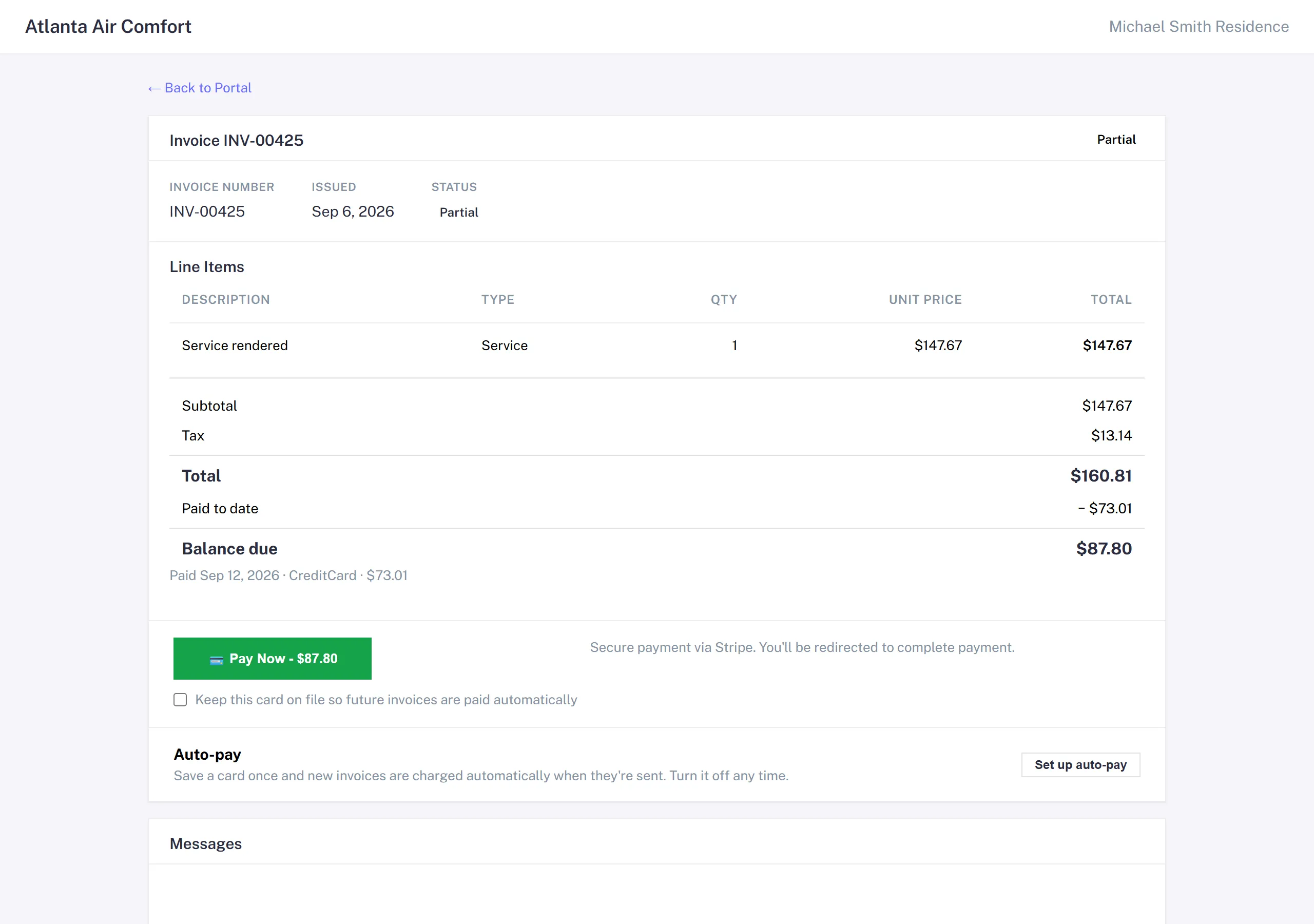
- You record the first installment (check, cash, or a card payment you took); the portal's Pay button always charges what is left.
- The invoice flips to Partial.
- The portal Pay button updates to the remaining balance.
- The rest comes in whenever, in any number of installments you record, or in one portal payment.
- At zero balance it flips to Paid.
Money past the balance, whether a card payment that lands after you recorded a check or a check for more than what's owed, becomes a credit memo in the customer's name. The invoice never shows a negative balance; the credit waits for their next invoice or a refund.
Auto-pay charges the balance, not the face value: an invoice that credits a paid deposit or an applied credit memo is charged for the remainder, once.
Refunds
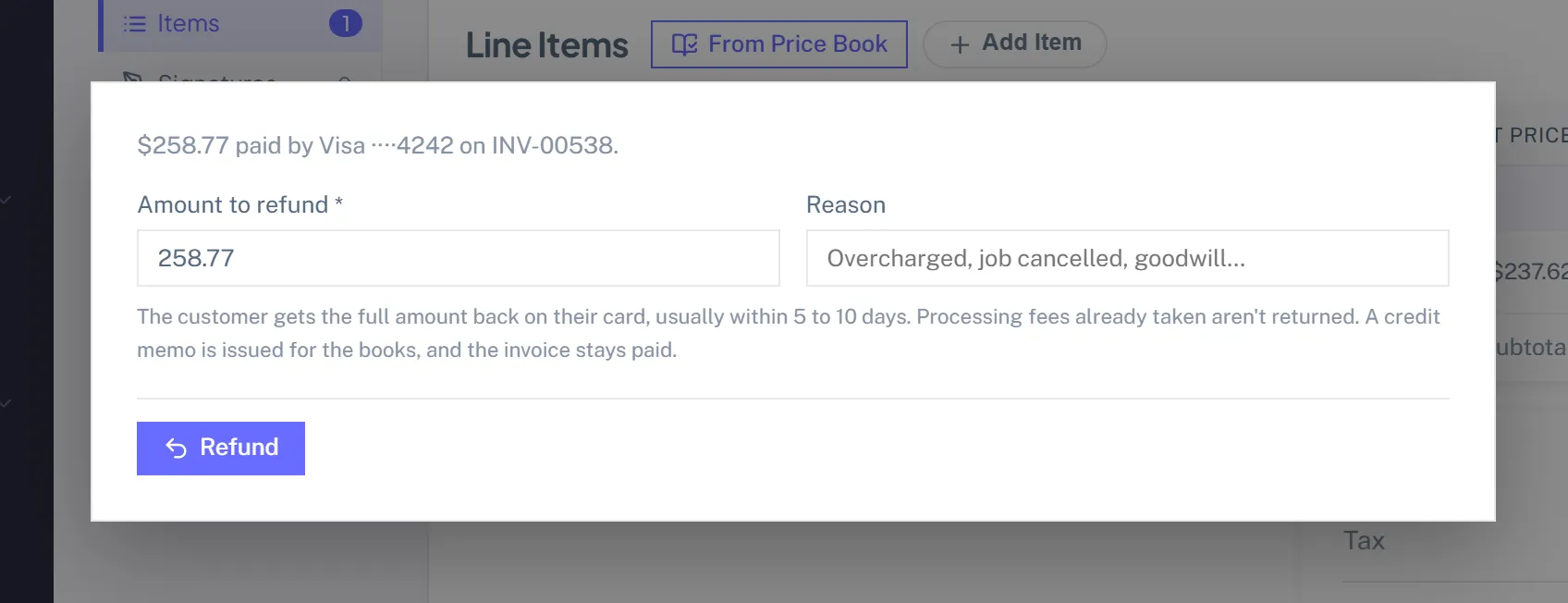
Refund a card payment from where you see it: the payment row on the invoice, or the row menu on the Payments page. Full or partial. Manuall sends the refund to Stripe and books it as a negative payment plus a credit memo, so the invoice stays Paid rather than reopening, revenue nets down, and the customer gets an email saying the money is on its way back (banks take 5 to 10 business days to show it). Fees already taken, Stripe's and the platform's, stay taken.
A credit you issued by hand (goodwill, a return) and then paid out by check, cash or bank transfer: open the credit memo, Mark Refunded, and record the date, method and reference. It shows on the Payments page with the card refunds.
Chargebacks
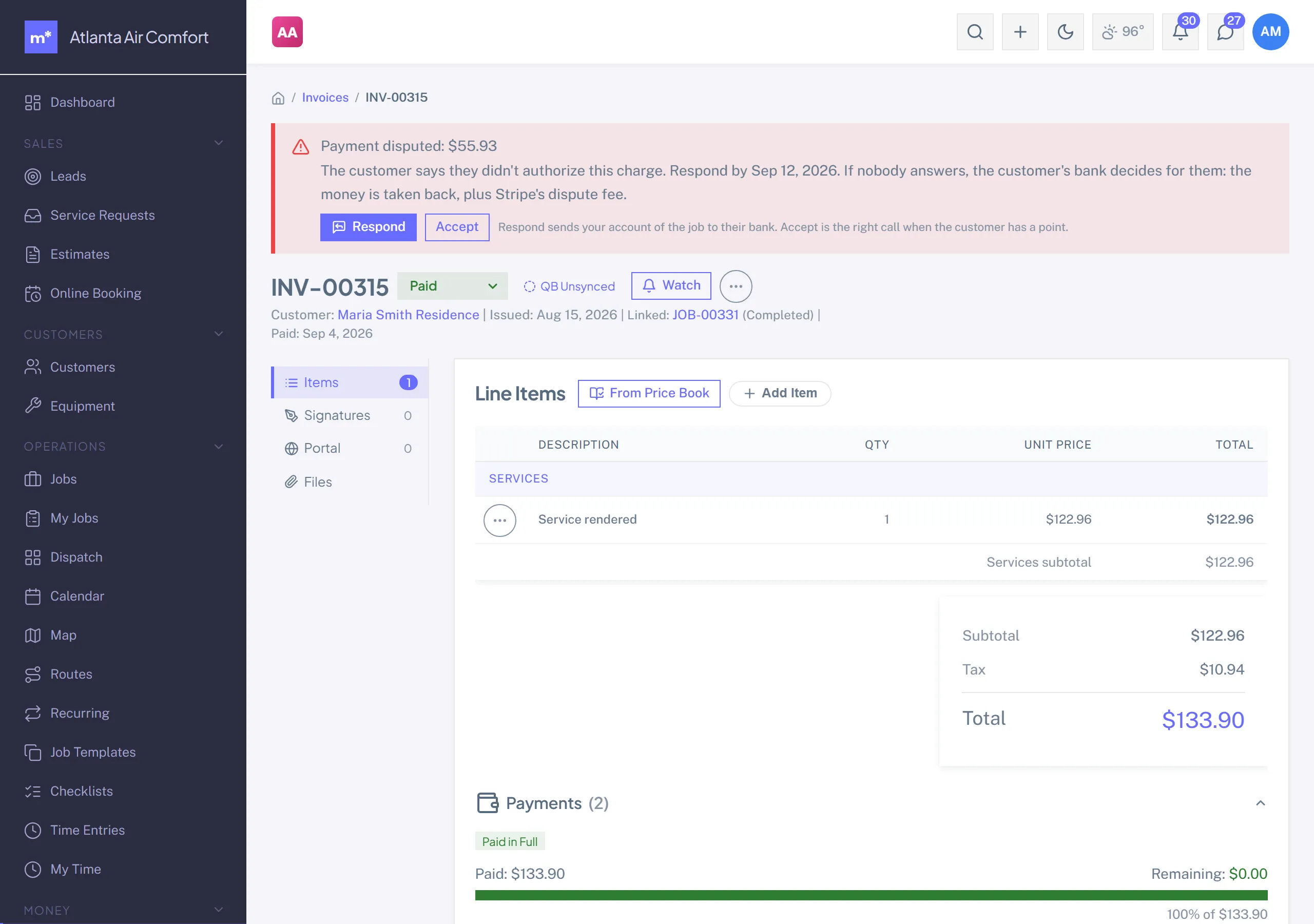
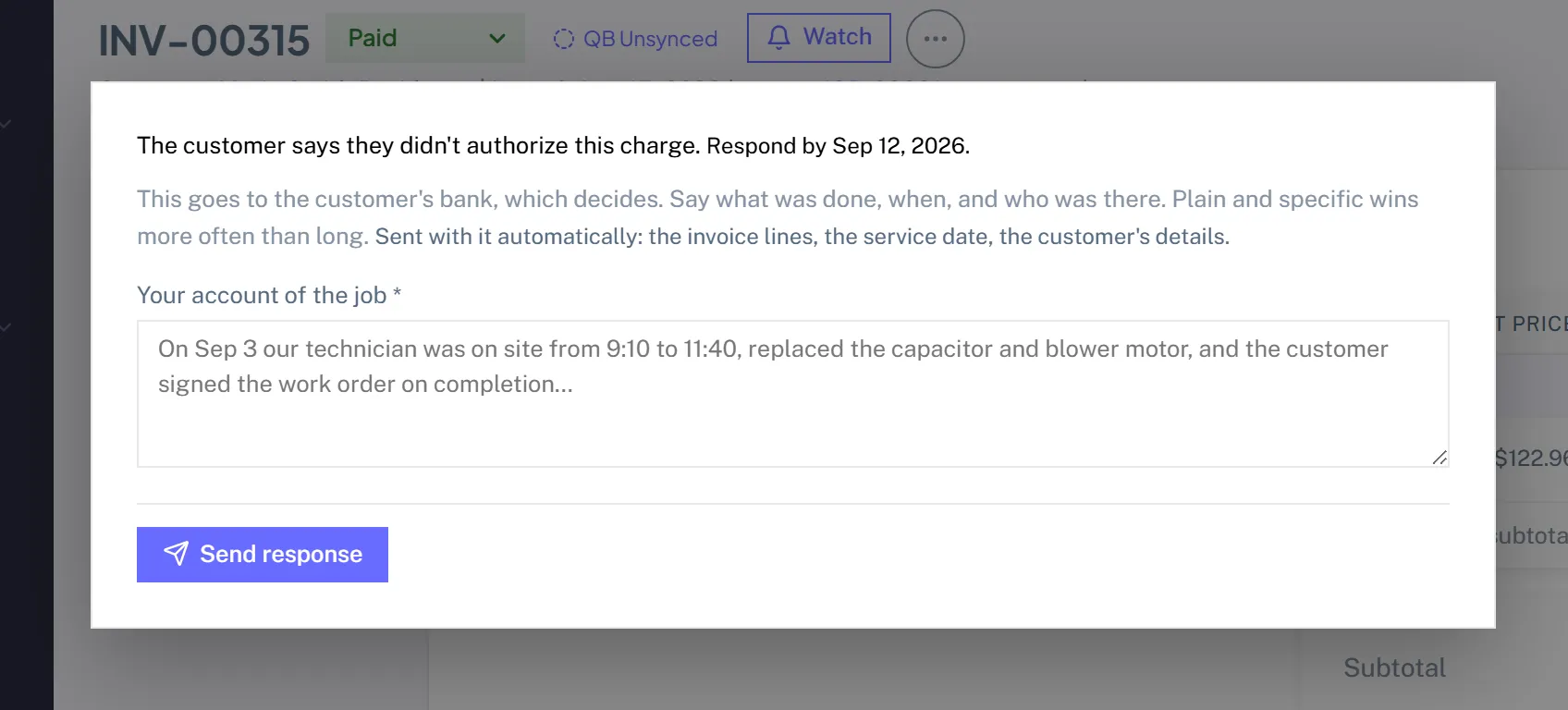
When a customer disputes a card payment with their bank, the invoice shows a red banner with the deadline and admins get an email. Respond with your account of the job; Manuall sends the customer's signature, up to two job photos, the invoice lines, the service date and the customer's details along with it. Accept if you'd rather not contest. A lost dispute books like a refund: the invoice stays Paid, the money is gone, and Stripe's dispute fee is the shop's.
Auto-pay declines
If a saved card is declined when an invoice goes out, the customer gets an email with the pay link, admins get a notification, and Manuall tries the card once more three days later. A second decline leaves it to the reminder cadence. A bank asking for extra verification (3-D Secure) goes straight to the customer, since only they can answer it.
Payouts
Settings -> Payments shows your Stripe balance, what's on the way, and recent payouts. Click a payout to see what was in it: each charge, refund and fee, tied back to its invoice, which is what you reconcile a bank deposit against. You're notified when a payout is sent. If Stripe needs something from you (a document, a bank account) or pauses payouts, admins get an email the moment it starts, and an all-clear when it's resolved.
The Payments page
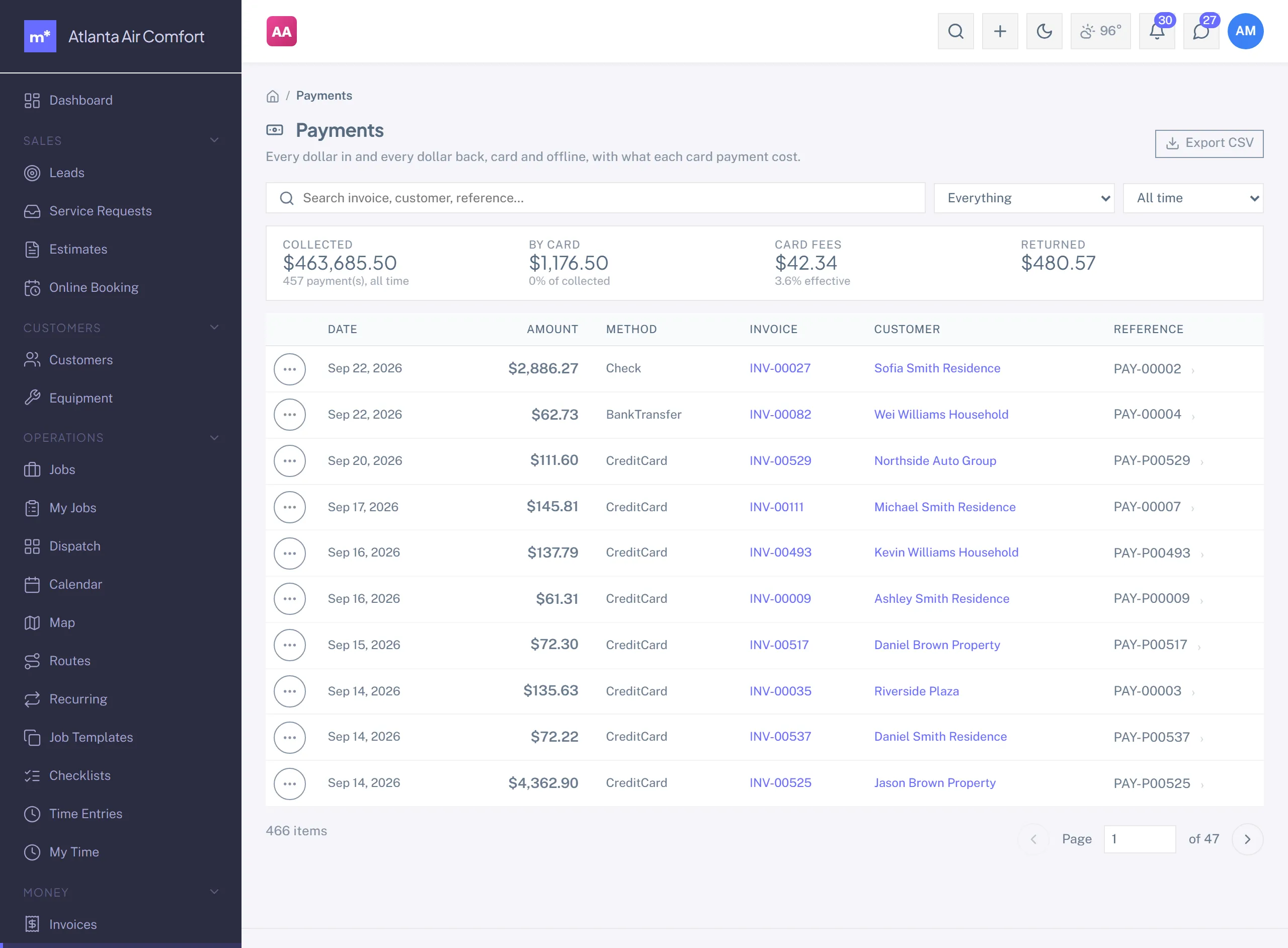
Money -> Payments is every dollar in and every dollar back: card and offline payments, refunds, chargebacks, credit memos applied and credits paid out, with the fee and net under each card payment. Search by invoice, customer or reference, filter by kind and period, expand a row for the detail, and export the same filter to CSV. The strip on top totals the whole period.
Killing an invoice issued in error
Mark it Written Off (a status), so it stays on the record for the audit trail instead of vanishing. If it was already paid by card, refund it from the invoice first; the refund books its own credit memo.
Overdue invoices
Anything past due with a balance goes Overdue on its own. Manuall chases for you: it automatically emails past-due reminders (the invoice dunning system), the Dashboard's Overdue tile shows the count and total, and customers with overdue invoices carry a red dot on their record.
QuickBooks sync
With QuickBooks connected (QuickBooks): new invoices push to QBO, payments push when they settle, refunds and lost chargebacks push as refund receipts, and failed syncs queue with retry and backoff (the sync queue surfaces the underlying error). Stripe's processing fee is netted on Stripe's side, so reconcile your Stripe payout statements against the synced payments.
Print invoice
Every invoice has a print view: logo, business info, addresses, line items, tax, total, terms. Print to PDF from the browser.
Email log
Every email Manuall sends (invoice, estimate, survey, notification) is logged. Insights -> Email Log, filtered by customer and type, tells you whether the invoice email actually went out.