
Map & Routes
See the day's jobs on a map. Order each tech's stops into a route and hand off to Maps.
Two related surfaces, both reachable from the List / Calendar / Map / Routes toggle in the Jobs page header (or directly at /map and /routes).
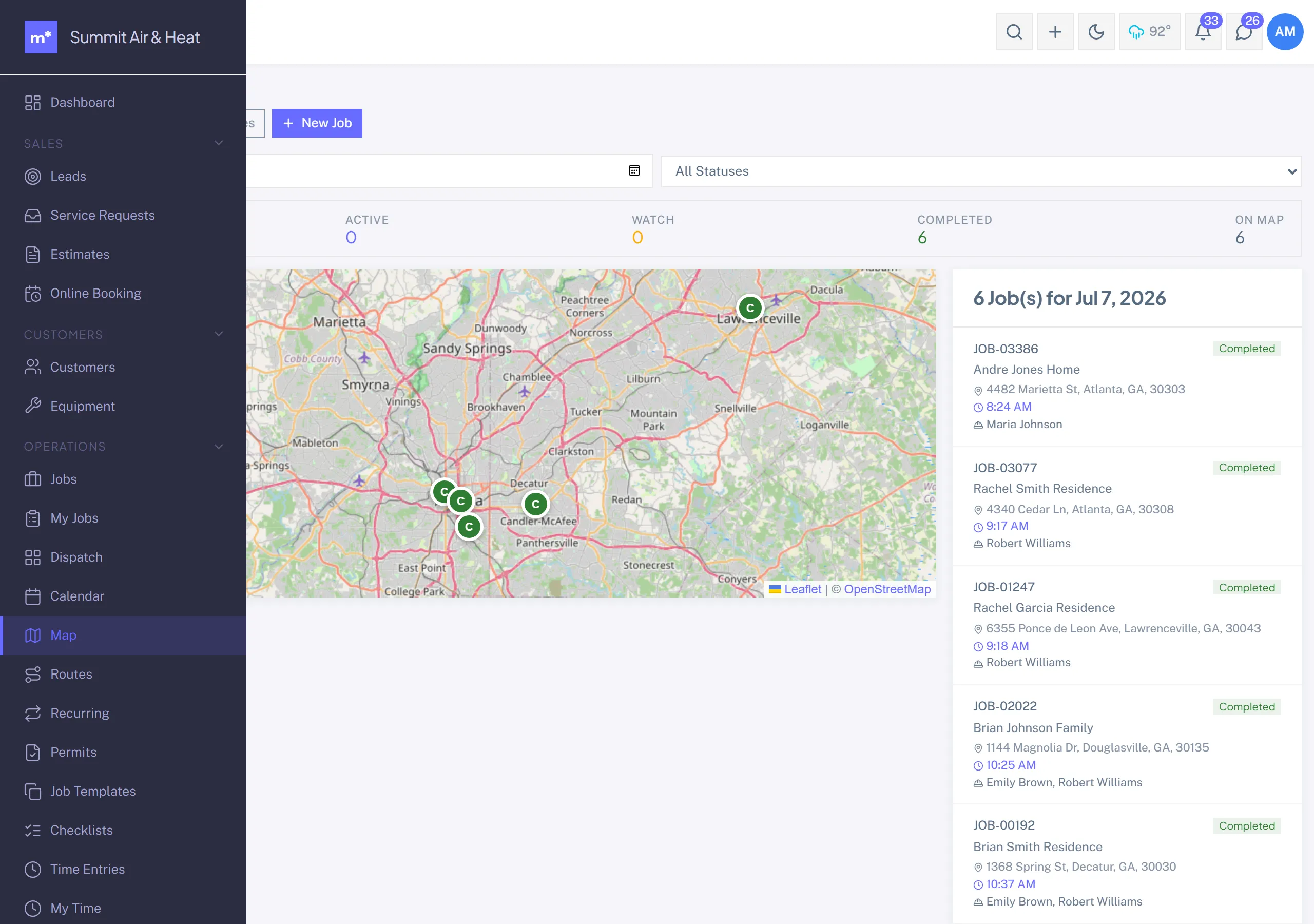
Map view
An interactive map of the day's jobs as pins, each colored by the tech's avatar color. Click a pin for a quick preview and a link to the Job detail.
Filters: per-tech show/hide, status, and date.
Routes view
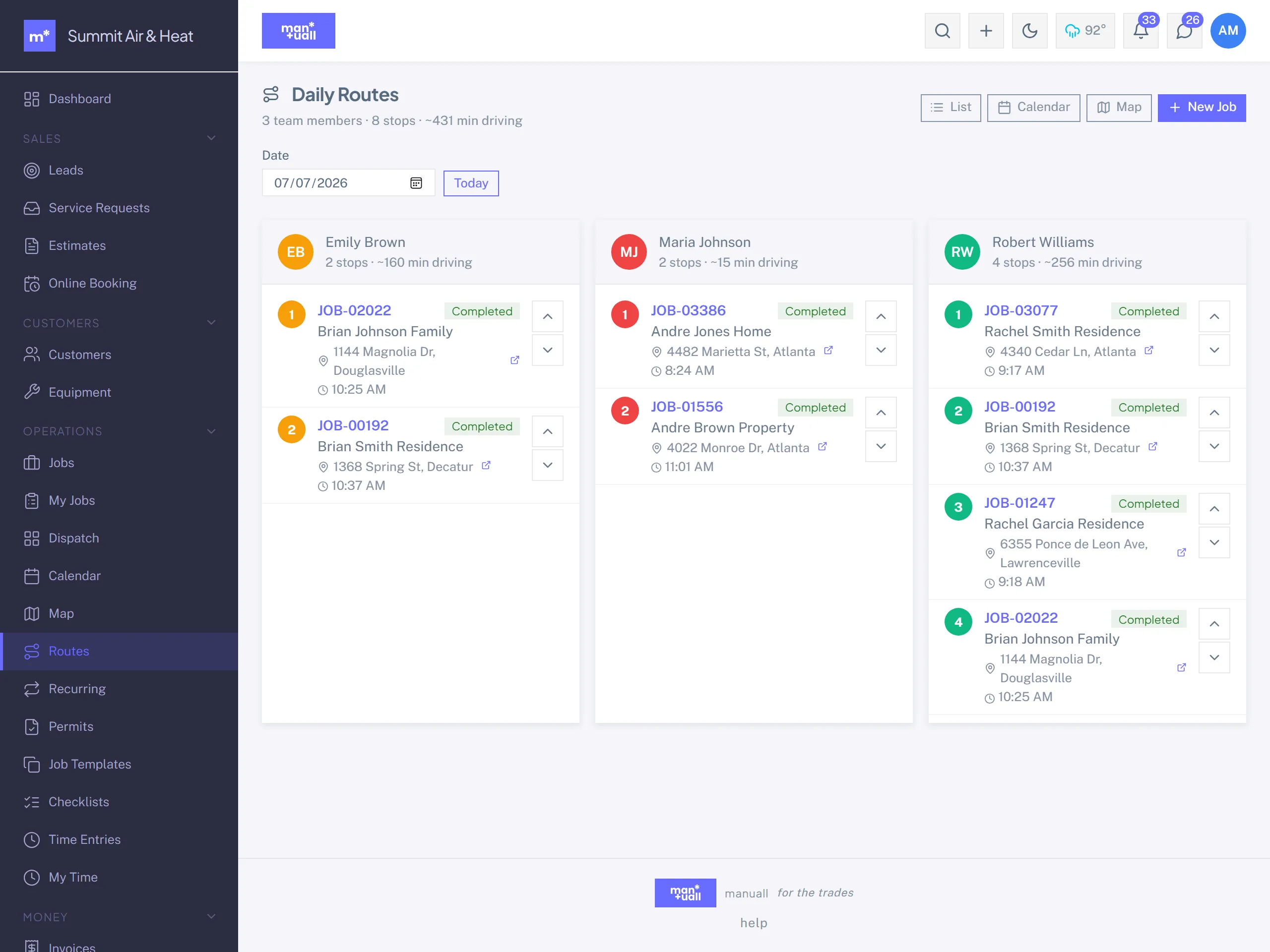
One ordered list of stops per tech for the chosen date. Drag rows to re-order a tech's route, then click Open route in Maps to hand all the stops to Google Maps in order.
Routes shows the day's stops, lets you set the order with a drag, then hands the whole list to Google Maps for live, traffic-aware navigation.
Geocoding
A customer needs a geocoded service address to appear on the Map. Saving a service address geocodes it automatically; a failed geocode flags on the customer record so you can fix the address.
Plan tier
Map (view) and Routes are on every plan.