
Apply a Vertical Pack
Add a trade pack to an existing workspace mid-flight. Idempotent and safe.
Vertical packs are pre-built bundles of custom fields, job templates, services, and checklists tuned to a trade. Thirty-three ship today. The matching pack applies at signup when you pick a Trade, and you can apply another any time from this page.
Why packs exist
Without a pack, a fresh workspace has an empty Price Book, no job templates, and generic fields. You can build all of it by hand, but most shops don't, and end up running Manuall under-configured for months. With a pack, in under a minute your workspace looks like a real shop has been using it for a year.
The shipped packs
All 33 trades have a guide of their own. The 13 core trades:
And the 20 niche trades, built to the same shape:
Pick any of them from the Trade selector at signup or from Settings -> Vertical Packs.
Applying a pack
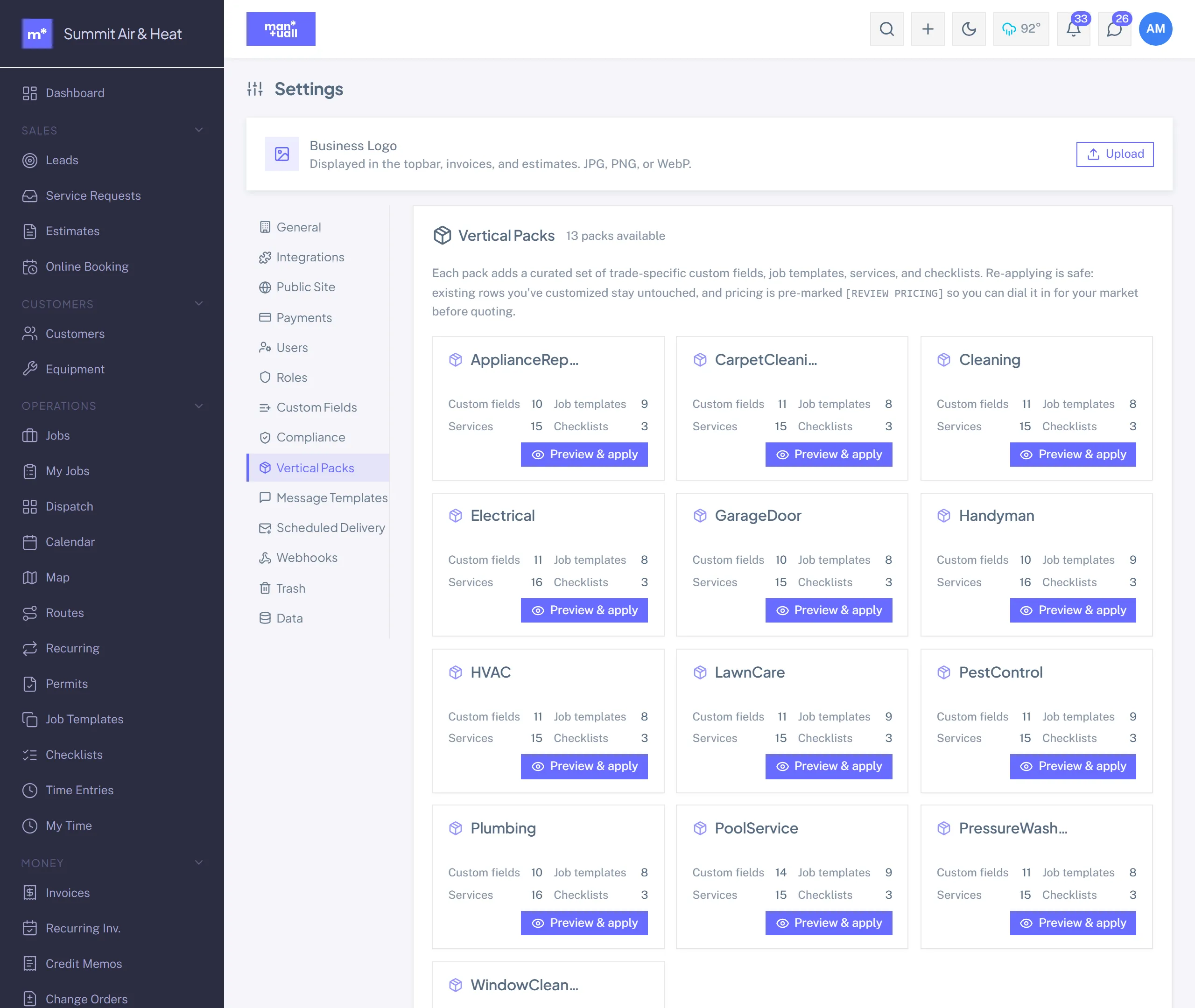
- Settings -> Vertical Packs.
- Each pack shows a card with what's inside, and an N installed badge once you have applied it.
- Click Preview & apply. A panel lists every custom field, job template, service, checklist and part by name, so you see exactly what you are about to add.
- Click Apply. The pack's content lands in your workspace.
Applying a pack also sets up the parts of the job you would otherwise wire by hand. Each job template arrives with the checklist its work needs, a prep note, and the billable lines it should pre-fill at the quantity a typical job of that kind involves. Create a job from HVAC: Spring AC Tune-Up and you get the tune-up line, the tune-up checklist and the tech's prep note, not an empty job.
The pack also seeds the parts that trade consumes and ties them to the services that consume them, so a service's Parts tab already says what one job takes. Stock starts at zero and pricing starts at a national average: see Purchasing and inventory for the first pass through it.
Idempotent: apply more than once
Re-applying a pack only adds what's missing.
If you've customized a service the pack also ships, the pack skips that item on re-apply. Your customizations stay.
Mixing packs
Plenty of shops are multi-trade (HVAC that also does plumbing, cleaning that also does carpet). Apply both: Settings -> Vertical Packs -> Apply HVAC, then Apply Plumbing on the same page. Both packs' fields, templates, services, and checklists land in your workspace. Trim what you don't use from Settings.
Pricing inside packs
Every pack price is a 2025 U.S. national-average estimate, badged "Set your price" until you save it.
Your real prices depend on region, demand, brand mix, and channel. Before your first estimate, walk the Price Book and set every service. Saving one clears its badge, so the badges left are your remaining list.
Removing a pack
Settings -> Vertical Packs -> Remove on any pack you have installed. A panel lists what will go, and only rows that came from that pack are touched: anything you added yourself, and anything from another pack, is left alone. Services, job templates and checklists are soft-deleted, so Trash brings them back. Custom fields are switched off rather than deleted, so you turn them back on from Settings -> Custom Fields.
Want a pack that isn't here?
If your trade isn't in the thirty-three, talk to your account rep. New packs are added by the Manuall team and reach your workspace on the next release.