
Run Your First Job
Create a customer, build the estimate, schedule a tech, finish on mobile, invoice and collect.
One end-to-end run: one customer, one quote, one job, one invoice, one payment. By the time you finish, you will have driven the whole revenue cycle through Manuall.
No real customer to test with?
Use a fake one. Stripe's test card 4242 4242 4242 4242 (any future expiry, any CVC) handles the payment. Delete the customer afterward from Settings -> Trash.
1. Create the customer
- Sidebar -> Customers.
- Click + New customer.
- Enter name, phone, email, and a service address.
- Save. The address geocodes in the background; if it lands, the customer appears on the Map.
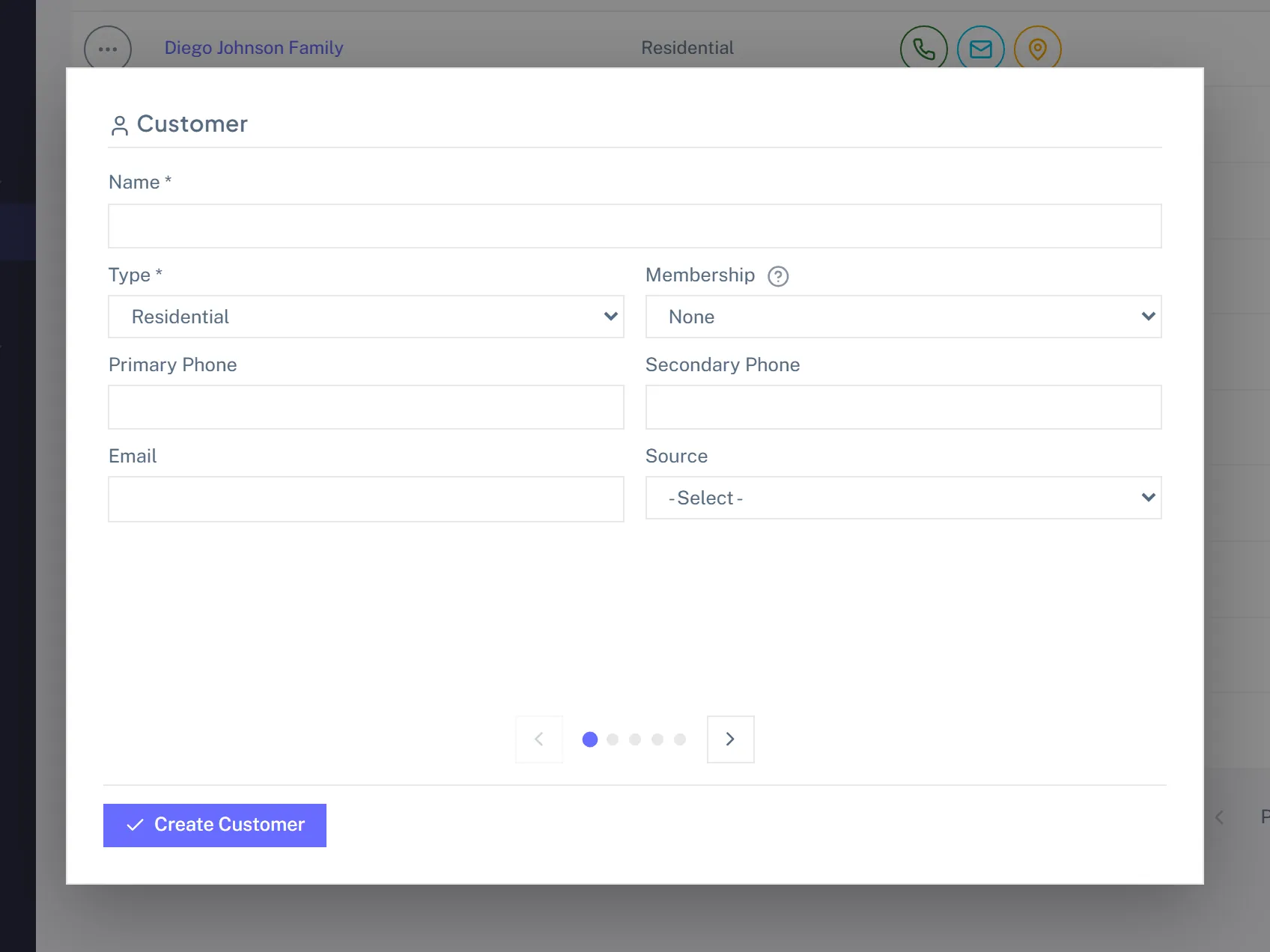
Come back later to add a billing address (if different), a contact person, a custom field, or notes.
2. Build an estimate
- Open the customer detail page.
- Estimates tab -> + New Estimate.
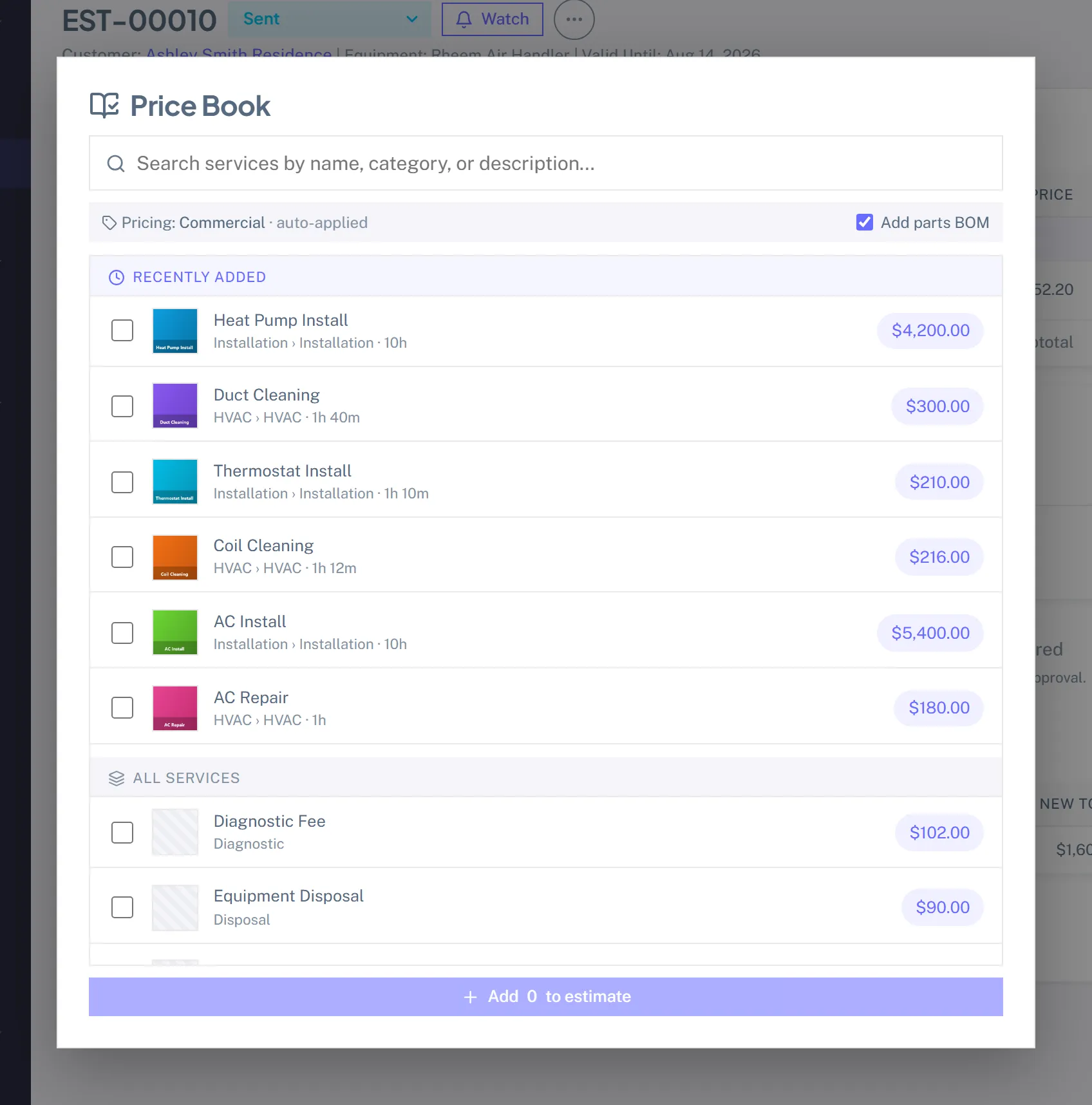
- Click + Add service from Price Book. A picker opens.
- Pick 2 or 3 services. They land on the estimate at the customer's default tier price (Default / Member / Commercial, auto-selected from the customer's type and membership status).
- Adjust quantities or unit prices if needed.
- Set the tax rate (defaults to your first active rate).
- Optional: set Deposit % or Deposit $. The portal collects this much before work begins. Common on bigger residential tickets ($5K+).
- Save -> Send. The customer gets an email with a portal link.
3. Customer approves
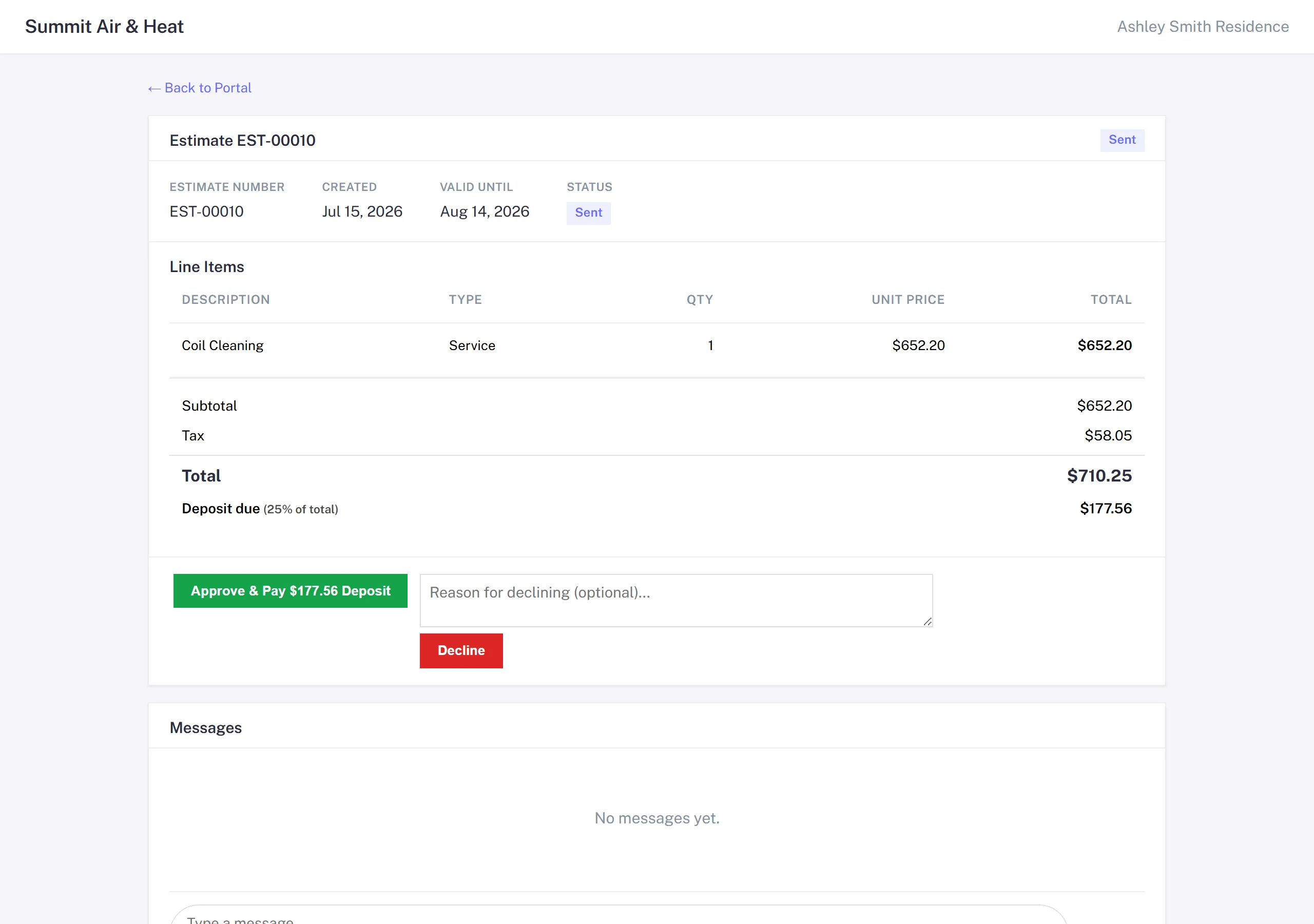
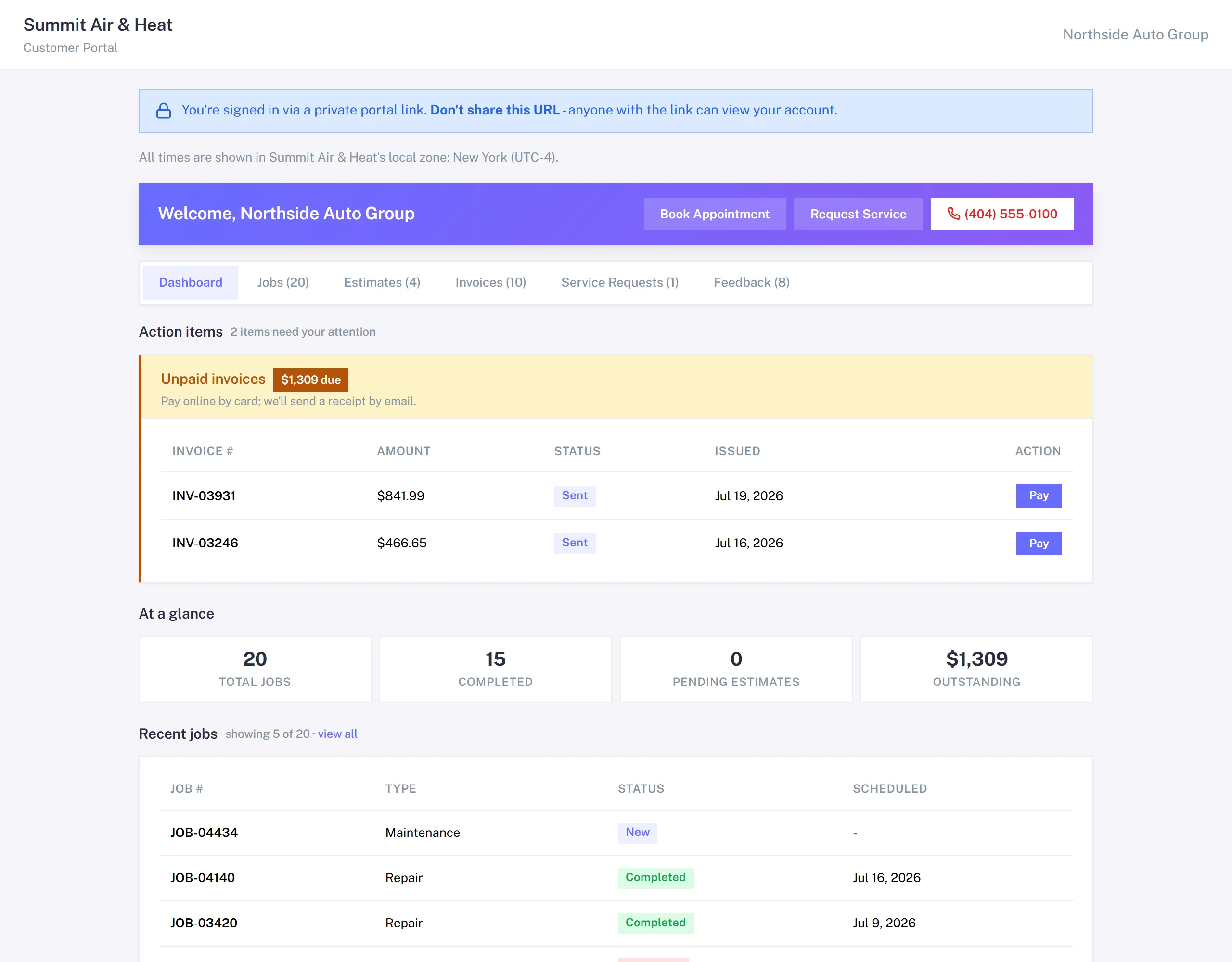
From the customer's side: they get the email, click the link, and see the estimate in their portal. Two big buttons: Approve and Decline.
If you set a deposit, the button reads Approve & Pay $X Deposit. Clicking it:
- Marks the estimate Approved.
- Mints a deposit invoice automatically.
- Sends the customer to Stripe Checkout for the deposit amount.
- Once Stripe confirms the charge, the deposit invoice is marked Paid and the estimate records the deposit as collected.
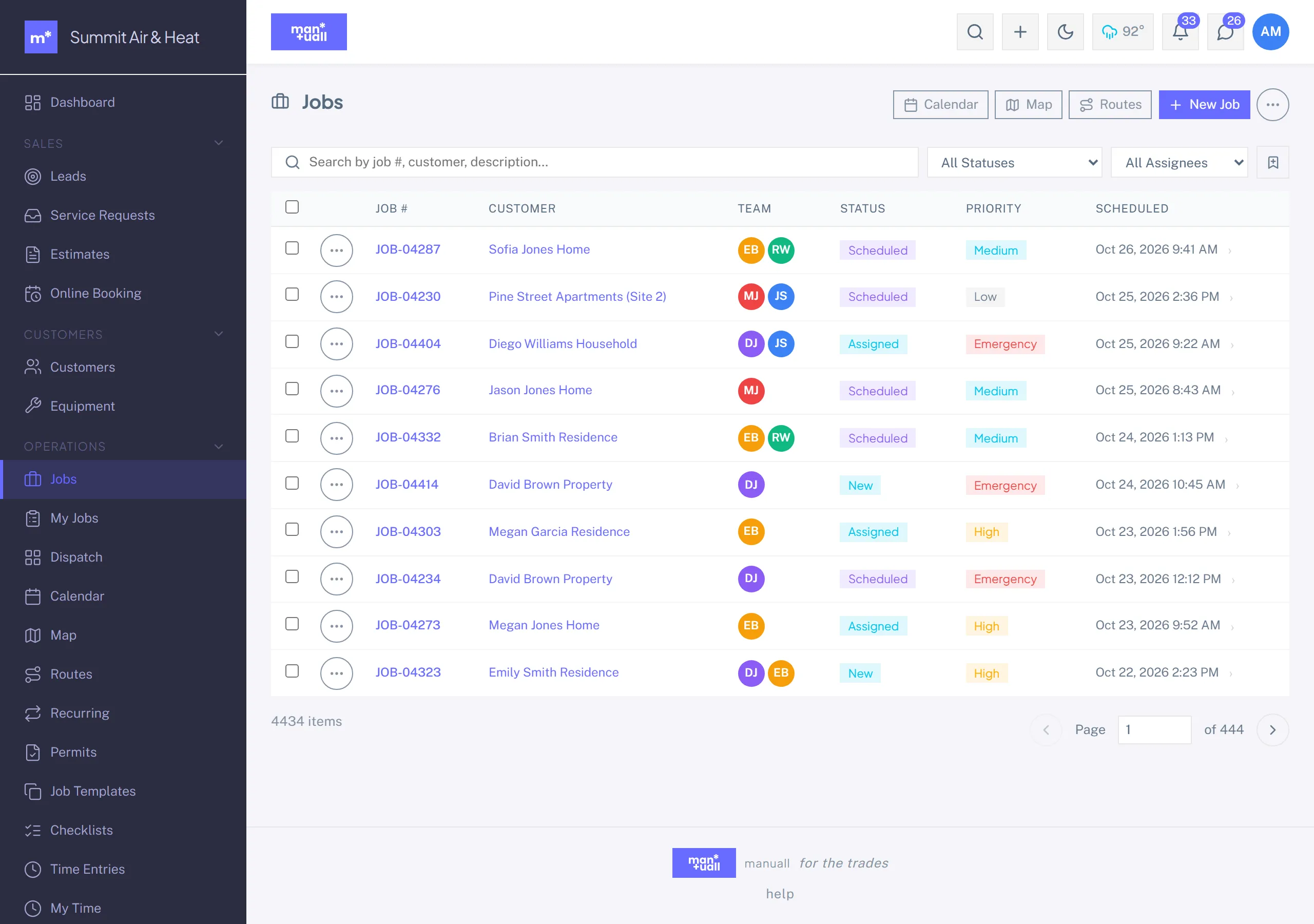
4. Convert estimate to job
- Estimate detail -> Convert to Job.
- The estimate's line items copy onto the job's service list.
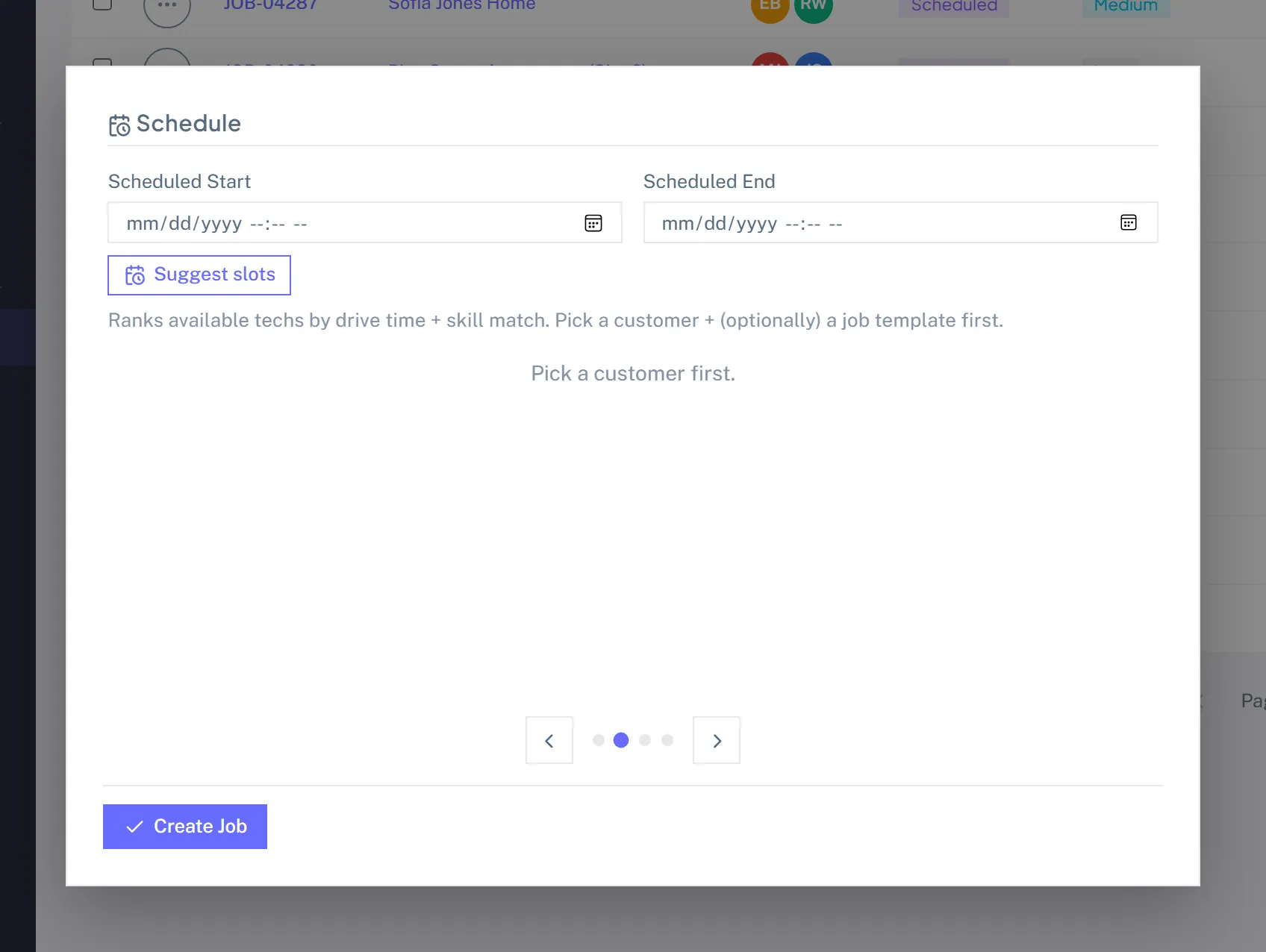
- Pick a Job Template (or skip). A template can pre-fill description, required skills, estimated duration, and default checklists.
- Set Scheduled start and end, or click Suggest Slots and let the slot finder pick the best open time for a tech with matching skills, a free schedule, and the customer inside the service radius.
- Save.
5. Tech runs the job
On the tech's phone:
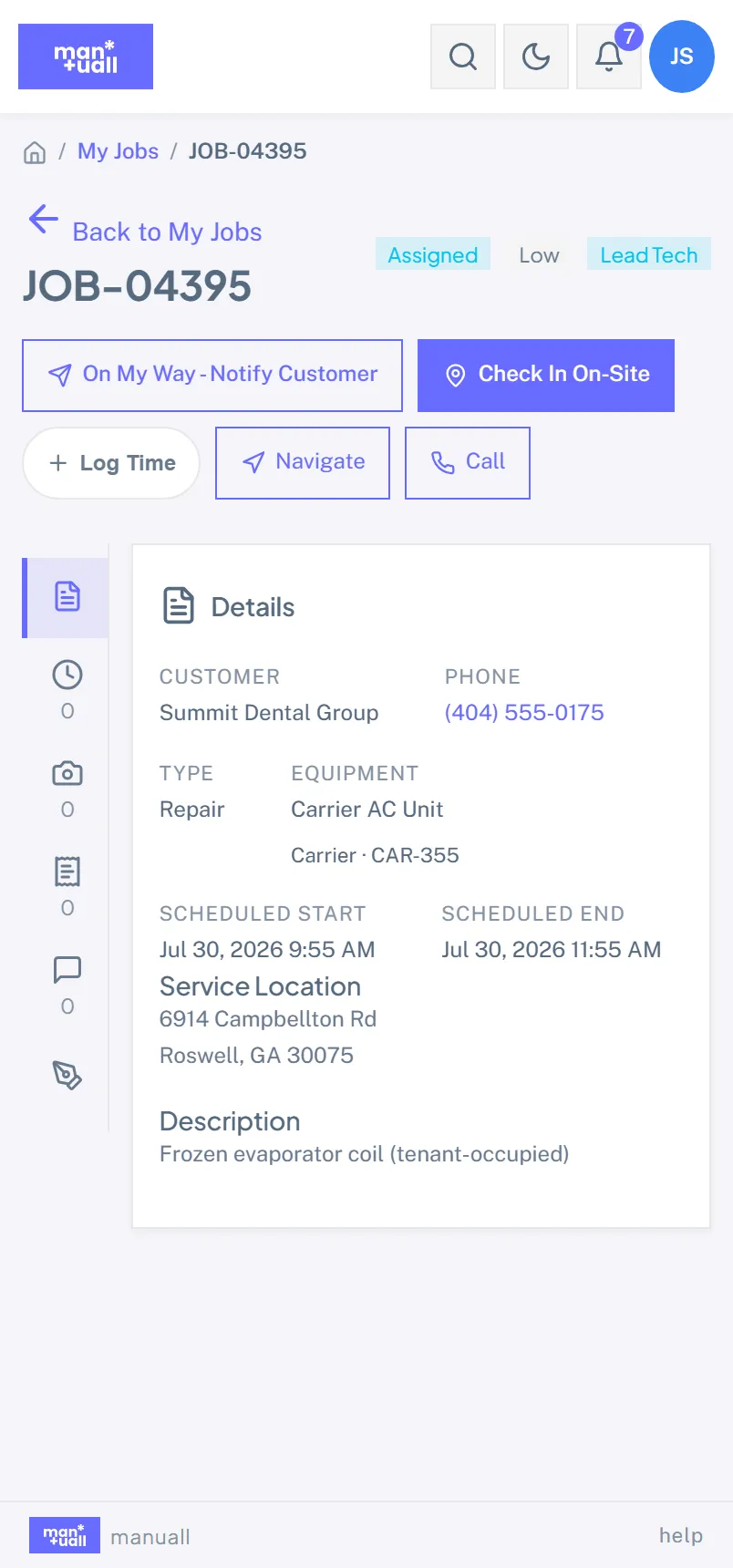
- Open the Manuall app. My Jobs is the default landing for technicians.
- Tap today's job. Read the description and customer notes.
- Tap Check in. Captures GPS coordinates and a timestamp.
- Do the work. Log parts used. Optional: snap before and after photos.
- If a checklist is attached, walk it and tap each item as you go.
- Tap Capture signature. The customer signs on the screen with a finger or stylus.
- Tap Check out. Stops the timer, captures departure GPS.
- Tap Mark complete.
6. Invoice goes out
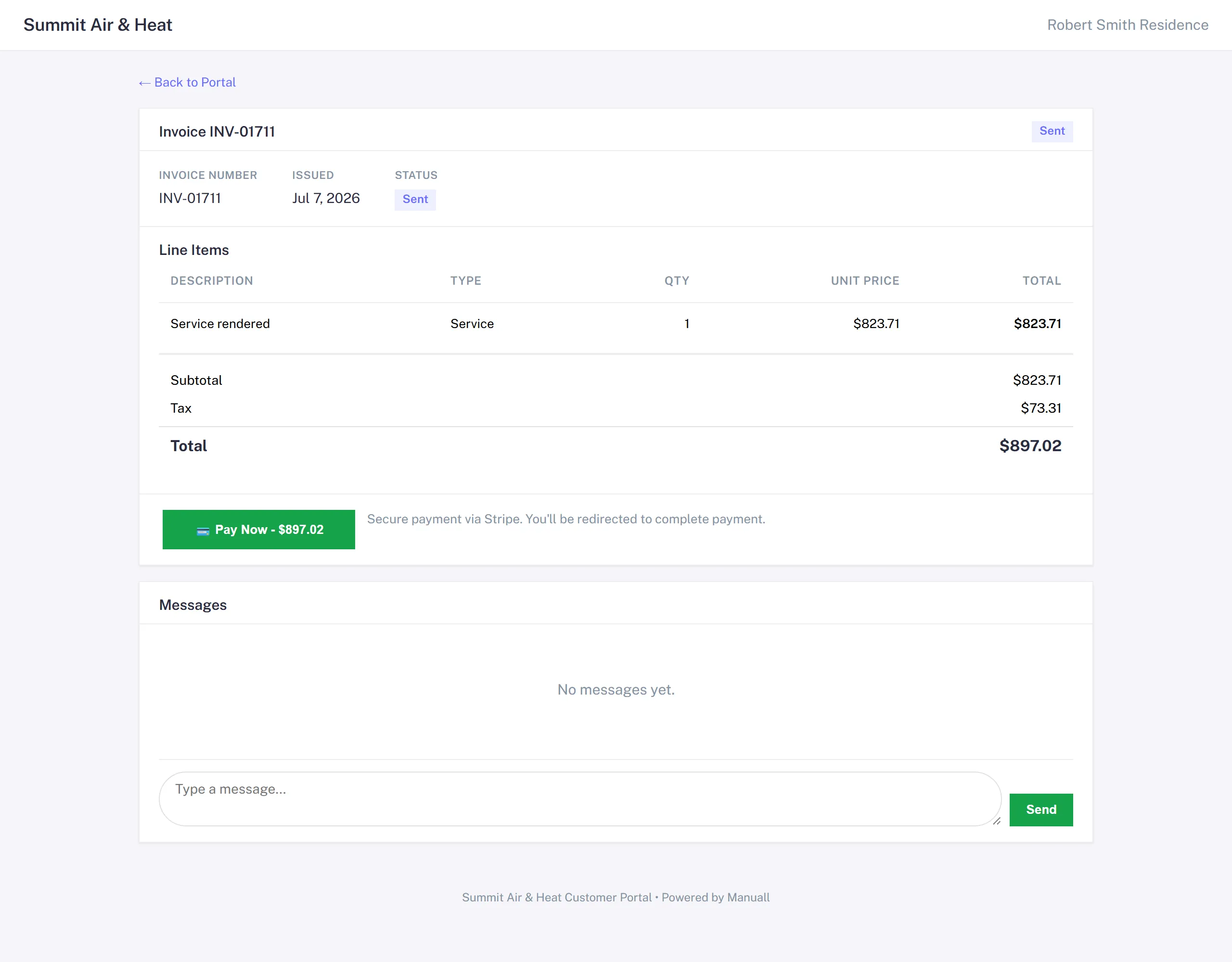
From the completed job, Generate Invoice does the math:
- Line items + tax + parts.
- Less any deposit you already collected.
- Balance due.
The invoice opens in Draft. Review it -> click Send. The customer gets an email with a portal link.
7. Customer pays
From the portal: they see the balance, click Pay now, enter card details on Stripe Checkout, and the invoice flips to Paid once Stripe confirms. They get an emailed receipt.
Behind the scenes, Stripe tells Manuall when the charge settles and the payment is recorded against the invoice. Card payments run about 3.4% per transaction, all-in; Stripe deposits the net to your bank on your account's own payout schedule.
What just happened (the trail)
| Where | What you'll find |
|---|---|
| Activity Log on the customer | Every status change, in time order. |
| Dashboard | Revenue tile ticked up. CSAT pending until the survey fires. |
| Analytics -> Financial Health | Average invoice value, margin per job, updated to include this one. |
| QuickBooks (if connected) | Invoice and payment sync over. |
| Customer record | Service history grows by one job. |
What to try next
- Send a satisfaction survey after the job: Customer Feedback Loop.
- Stand up a recurring job for a maintenance customer: Recurring Work.
- If the same scope needs a different deposit or pricing approach next time, save it as a Job Template.