
Estimates
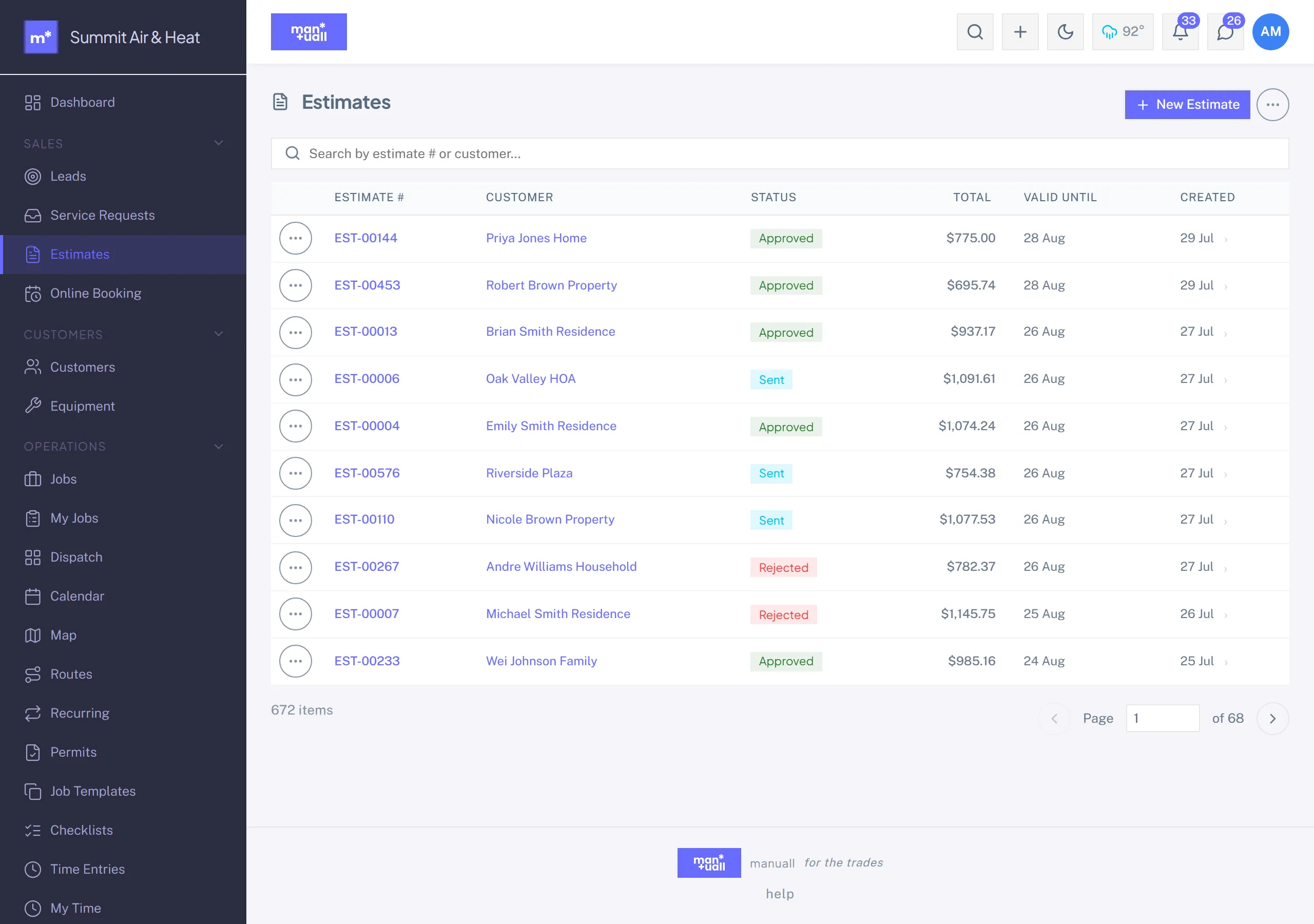
Build quotes from the Price Book, send for approval, collect a deposit, convert to a job.
Estimates are your formal quotes, the customer-facing "here's what it'll cost". For the end-to-end flow with deposits and conversion, see Estimates & Deposits.
Fields that matter
- Customer, with an optional Lead back-reference.
- Service address: defaults from the customer; override if needed.
- Line items: services, parts, and custom lines.
- Tax rate.
- Deposit % or Deposit $.
- Expiry date: defaults to 30 days out.
- Notes: shown on the portal and the print view.
Status
The common path is Draft -> Sent -> Approved -> converted to a job. A customer can decline it, ask for a revision, or let it lapse to Expired past its expiry date. Status is a fixed set, so a stray value can't slip in.
Customer-tier auto-default
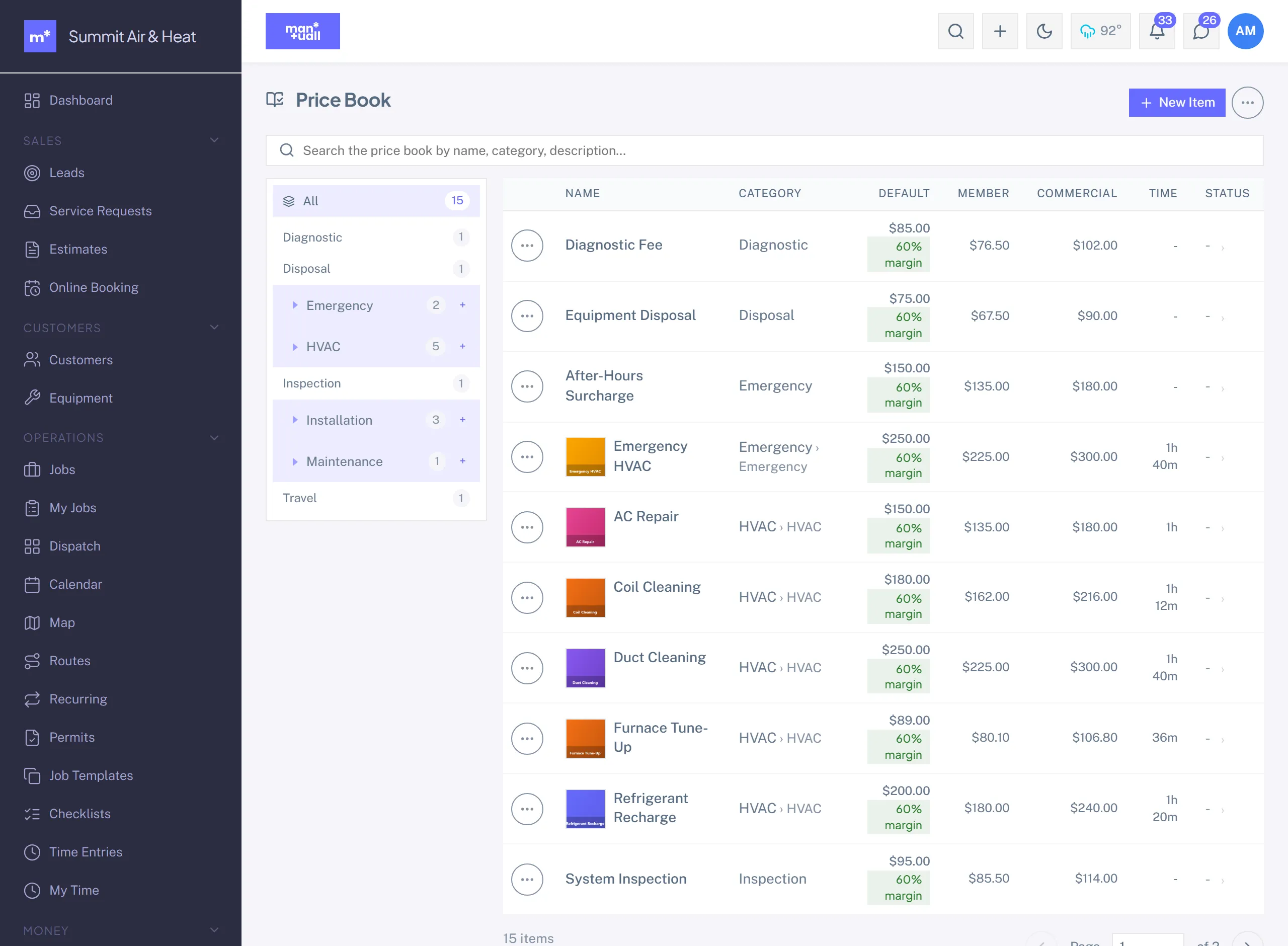
When you add a service from the Price Book, the price tier auto-selects:
- Customer Type = Commercial -> Commercial price.
- Customer flagged Member -> Member price.
- Otherwise -> Default price.
Override per line if you need to.
Deposit on approval
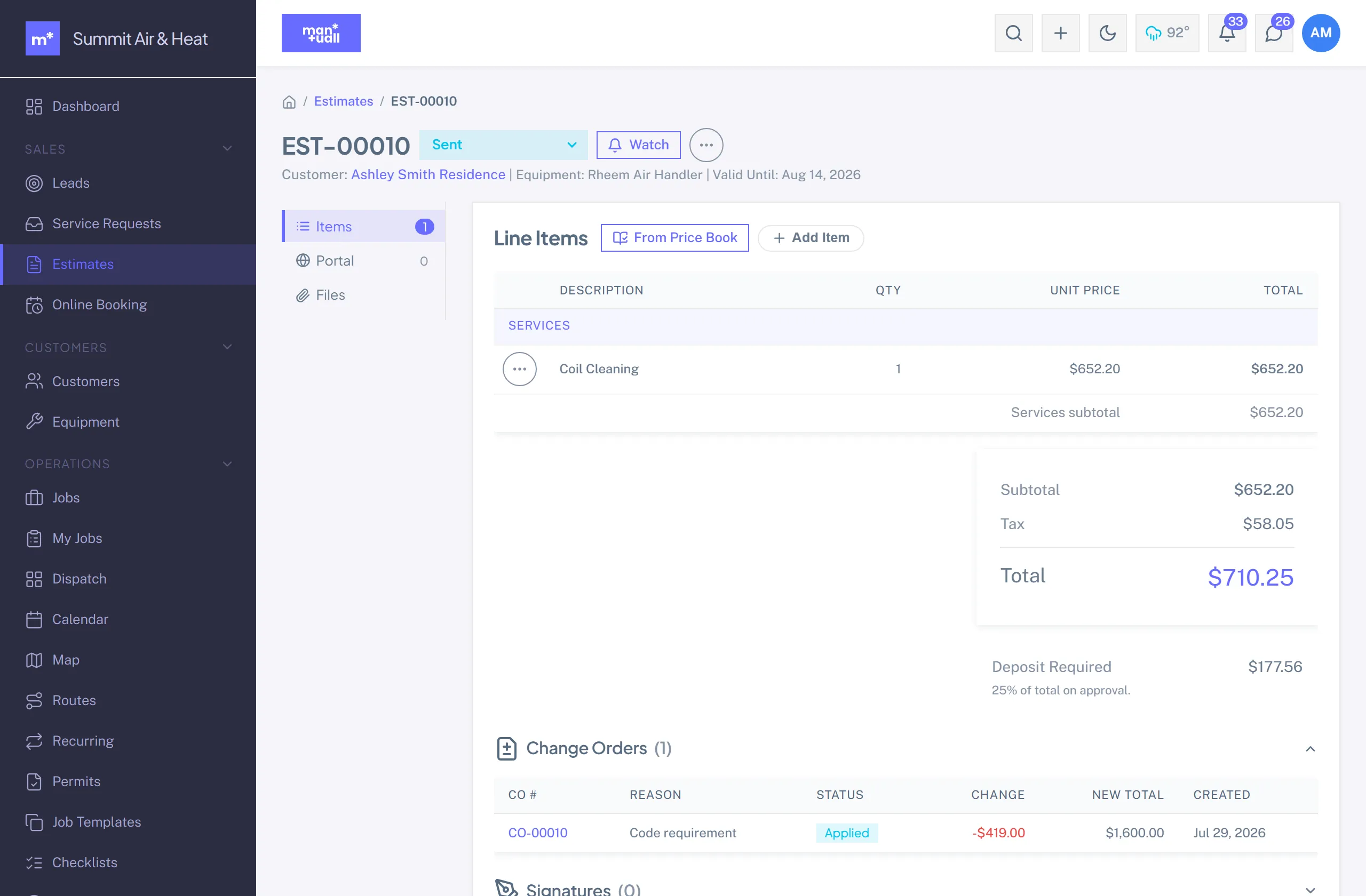
Set a Deposit % or Deposit $ and the portal's Approve button becomes "Approve & Pay $X Deposit". On click, the estimate is marked Approved, a deposit invoice is minted, and Stripe Checkout opens. Once the charge settles, the deposit is recorded as collected.
Convert to a job
Convert an approved estimate to a job: the line items copy over, the estimate is marked Approved, and the new job starts at New. Pick a Job Template (or skip), then set a scheduled time and tech, or click Suggest Slots.
Print view
Logo, business info, line items, total, notes. Opens in a new tab; print to PDF from the browser.
Plan tier
Estimates is on every plan.