
My Jobs (Field App)
The tech's mobile view: today's list, on-my-way, check in, time, parts, photos, signature.
My Jobs is the tech's home screen: their own assignments, sorted by scheduled start. Built mobile-first, it is the only operations surface most techs ever touch.
What you see
- Today's jobs up top, then upcoming.
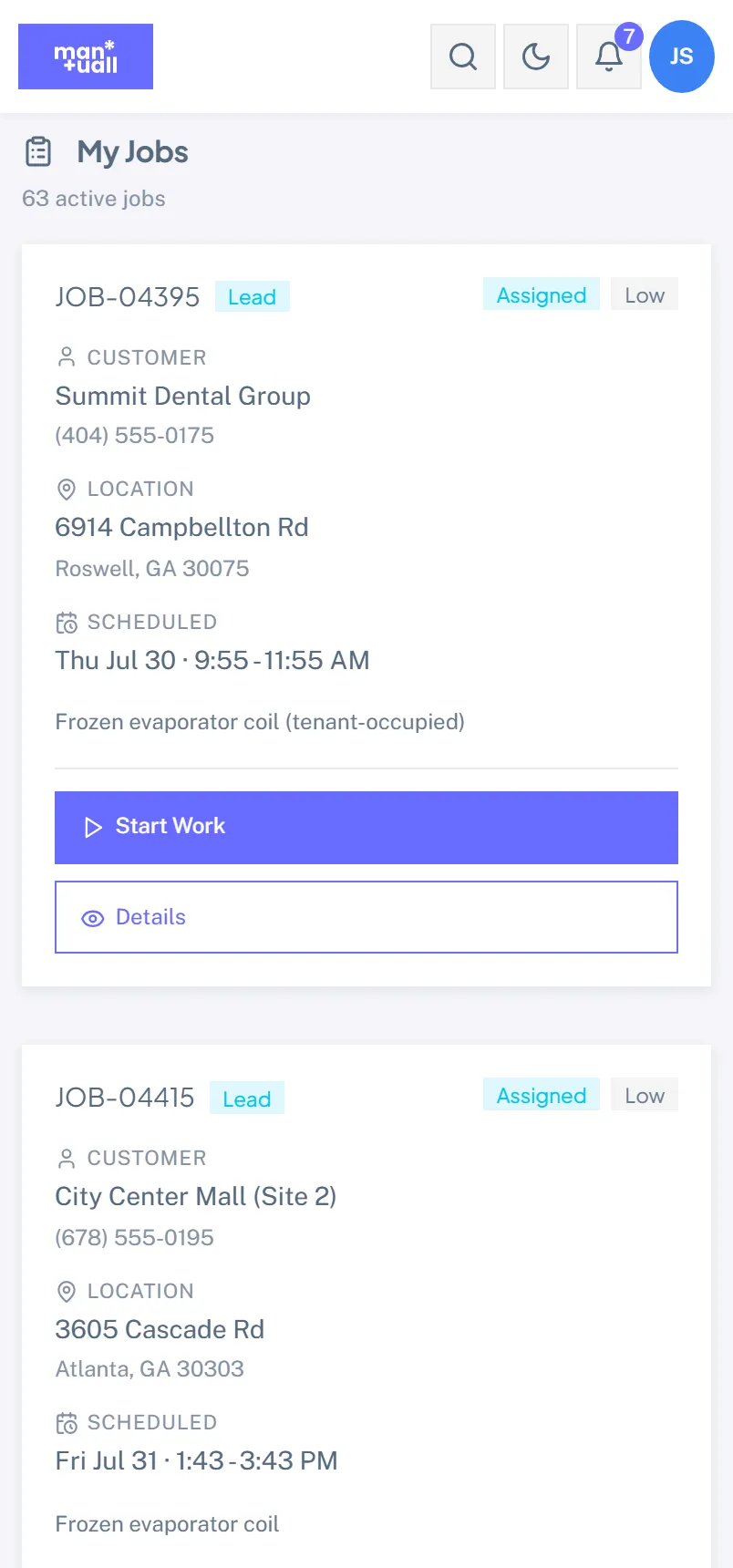
- Each card: customer name, address, time, status.
- Tap a card for full job detail.
Actions a tech can take
- Open in Maps: hand the address to Google Maps.
- Call / text customer: tap the phone or message icon.
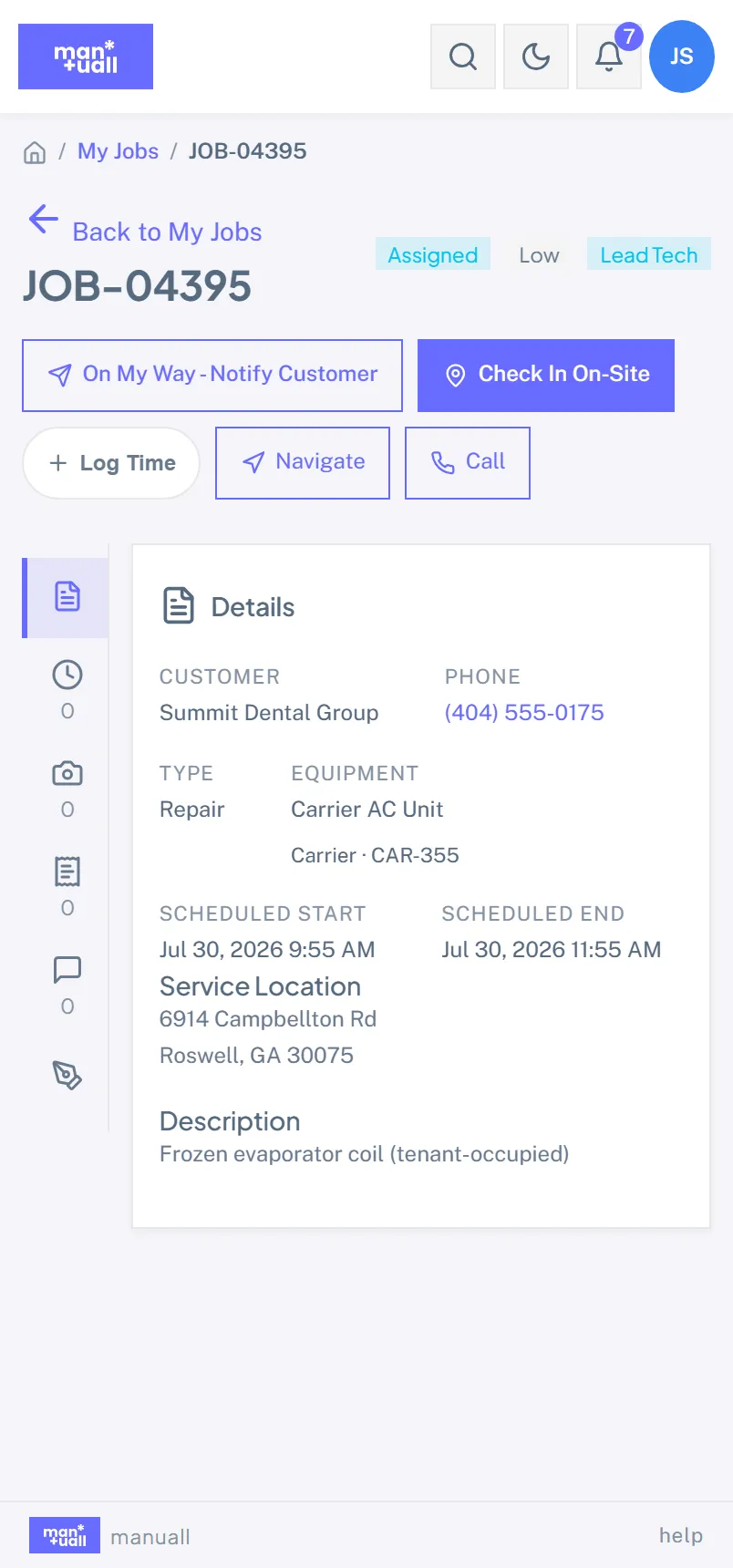
- On My Way: marks the job En Route and can text the customer a heads-up.
- Check In / Check Out: GPS plus timestamp. Check In moves the job to In Progress.
- Start / stop the timer (or log time manually).
- Log parts: debits truck inventory.
- Add photos: before and after.
- Walk a checklist: if one is attached.
- Capture signature: the customer signs on the phone.
- Add a note: capture what the tech learned on site.
- Complete / Sign Off: closes out the visit.
- Quote More Work: build an estimate from the price book for what the customer is not having done today.
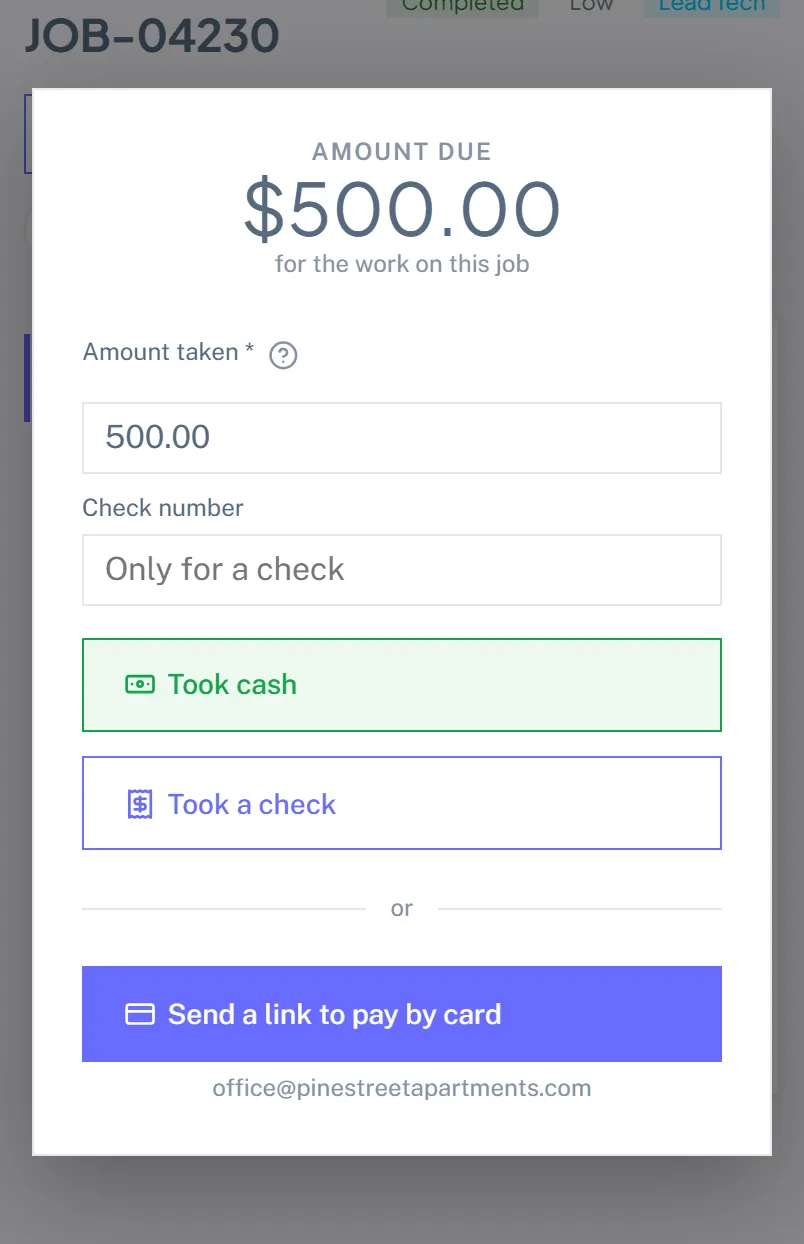
- Collect Payment: on a completed job, see what the visit comes to and take cash or a check, or email a card link.
Complete-job readiness
Before a tech signs off, Manuall shows a short readiness list: checked in on site and time logged are required, at least one photo is recommended. It keeps half-finished paperwork from reaching the office.
Offline first
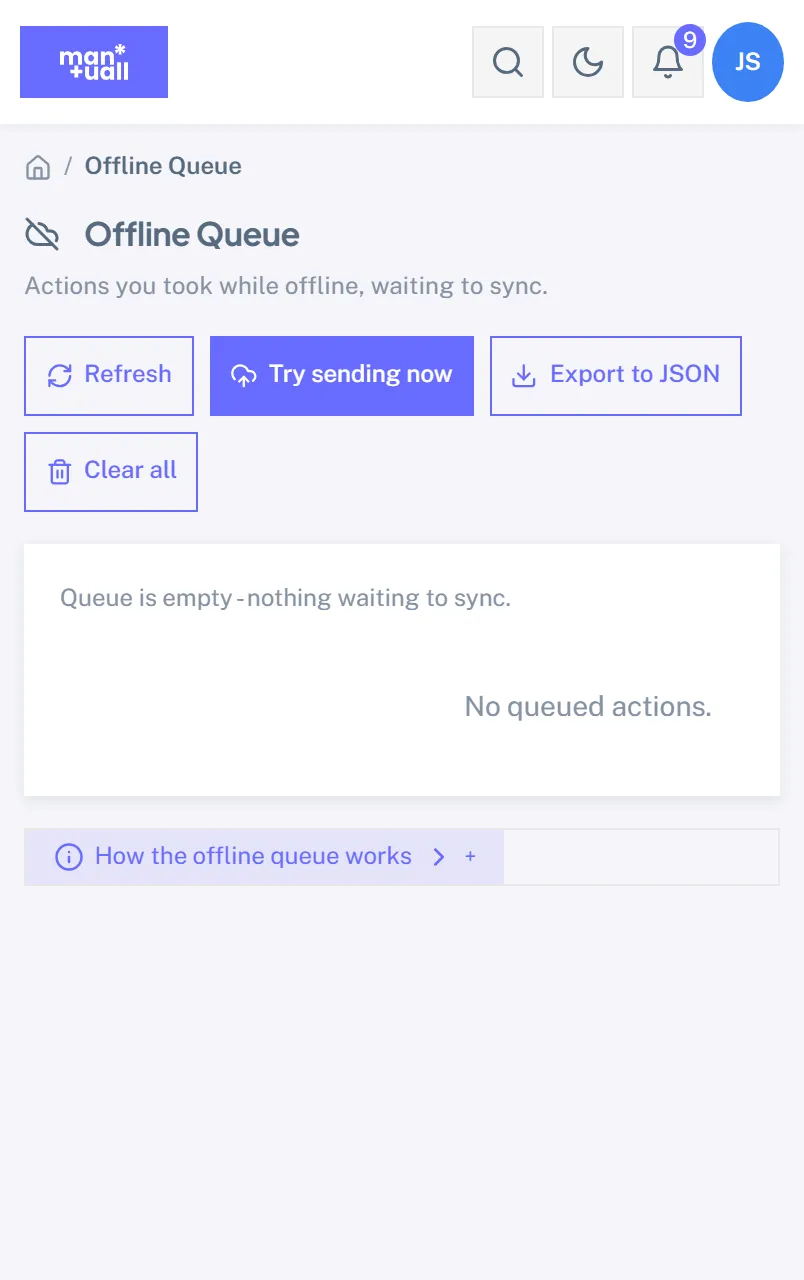
Every action queues securely on the device when the signal drops and drains on its own when it returns. Duplicates can't happen even if the tech keeps tapping. See Install the mobile app.
Quoting and collecting in the field
Two permission keys decide whether the visit ends at sign-off or at payment, and both ship on for Technician:
- FieldQuote lets a tech build a quote from the price book for work the customer is not having done today. It goes out as a normal estimate the customer approves in the portal, where a deposit can be taken.
- CollectPayment lets a tech close out the visit: see what it comes to, take cash or a check, or text a card link. Cash and check keep working with no signal; the card link does not, and the button says so rather than failing quietly.
Neither is the Invoices permission. A tech never sees accounts receivable, and cannot edit, void or refund anything after the fact, which is what stops the person who took the cash from later adjusting it. Turn either key off in Settings and the tech's job screen goes back to what it was.
Full walkthrough: Quoting and collecting in the field.
What's hidden from a plain Technician
- Other techs' jobs.
- Accounts receivable: invoice history, what is overdue, who owes what.
- Editing, voiding or refunding anything after it is recorded.
- Settings, Analytics, Customer Feedback.
A custom role can widen any of this. See Custom roles.
Plan tier
My Jobs is on every plan (Technician-visible).